

Hasura Cloud is an open source GraphQL engine that provides a scalable, highly available, globally distributed, secure GraphQL API for your data sources.
Connecting to a new OptiTech database
Use the following instructions to connect to a new OptiTech database. This connection method authenticates you from Hasura Cloud.
- Navigate to Hasura Cloud and sign up or log in.
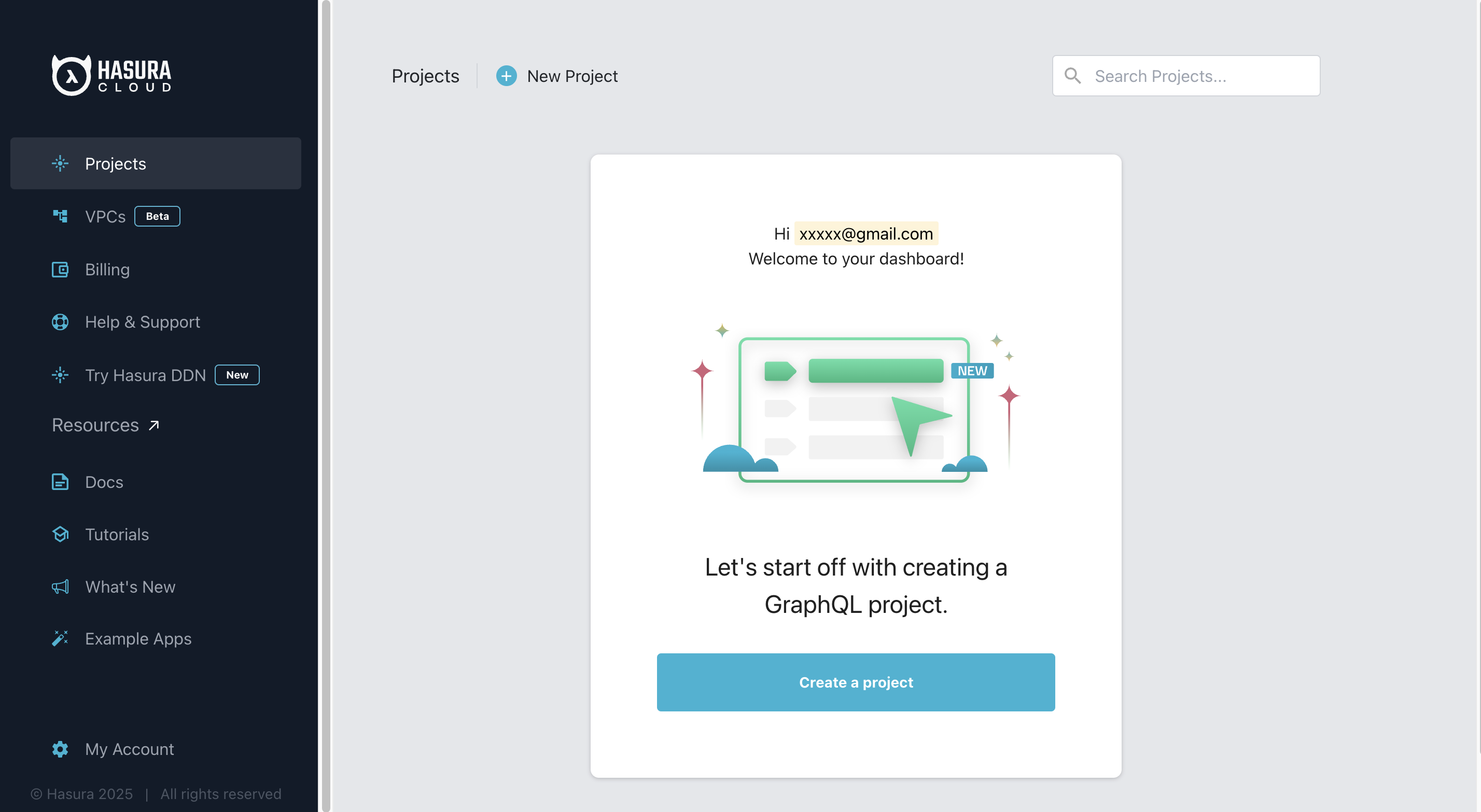
- On the Hasura Cloud dashboard, click Create a project to create a new Hasura project.
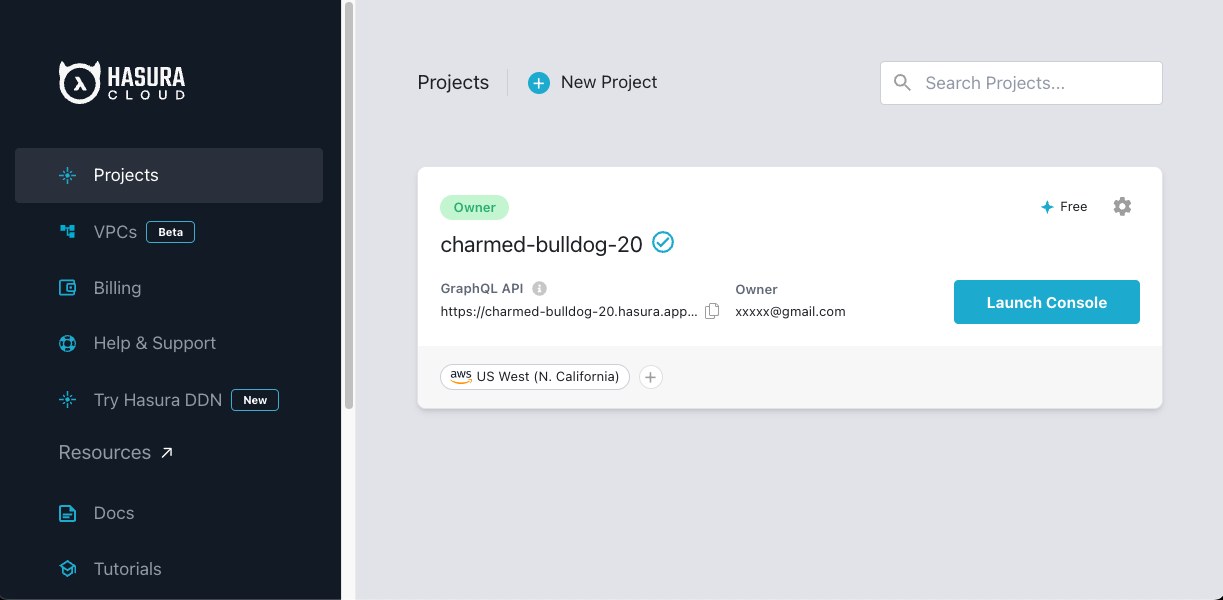
- After the project is initialized, click Launch Console to open the Hasura Console.
- On the Hasura Console, Select Data from the top navigation bar.
- Click Postgres > Connect OptiTech Database.
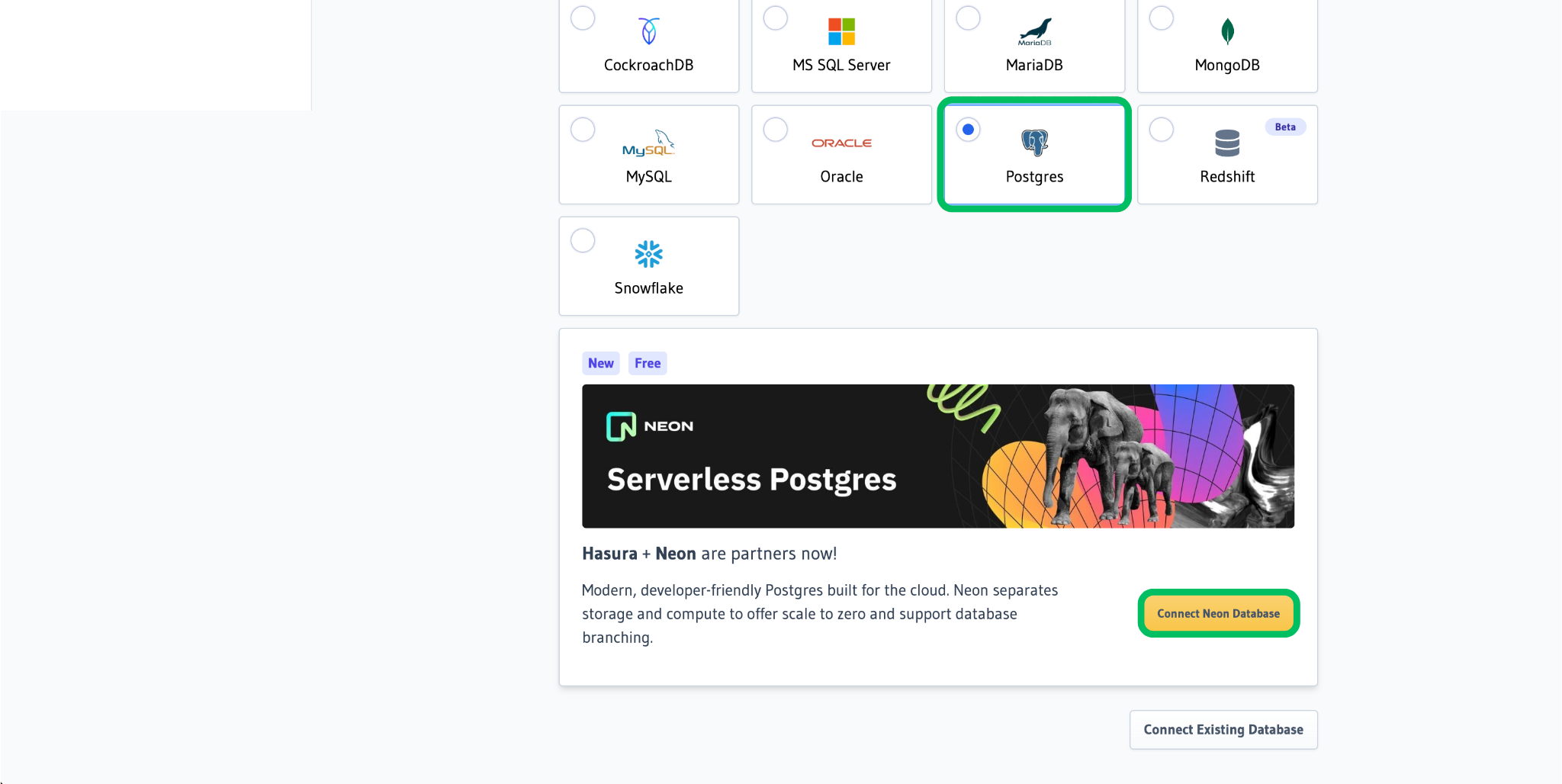
- When prompted to login or sign up for OptiTech, we recommend selecting Hasura for seamless authentication.
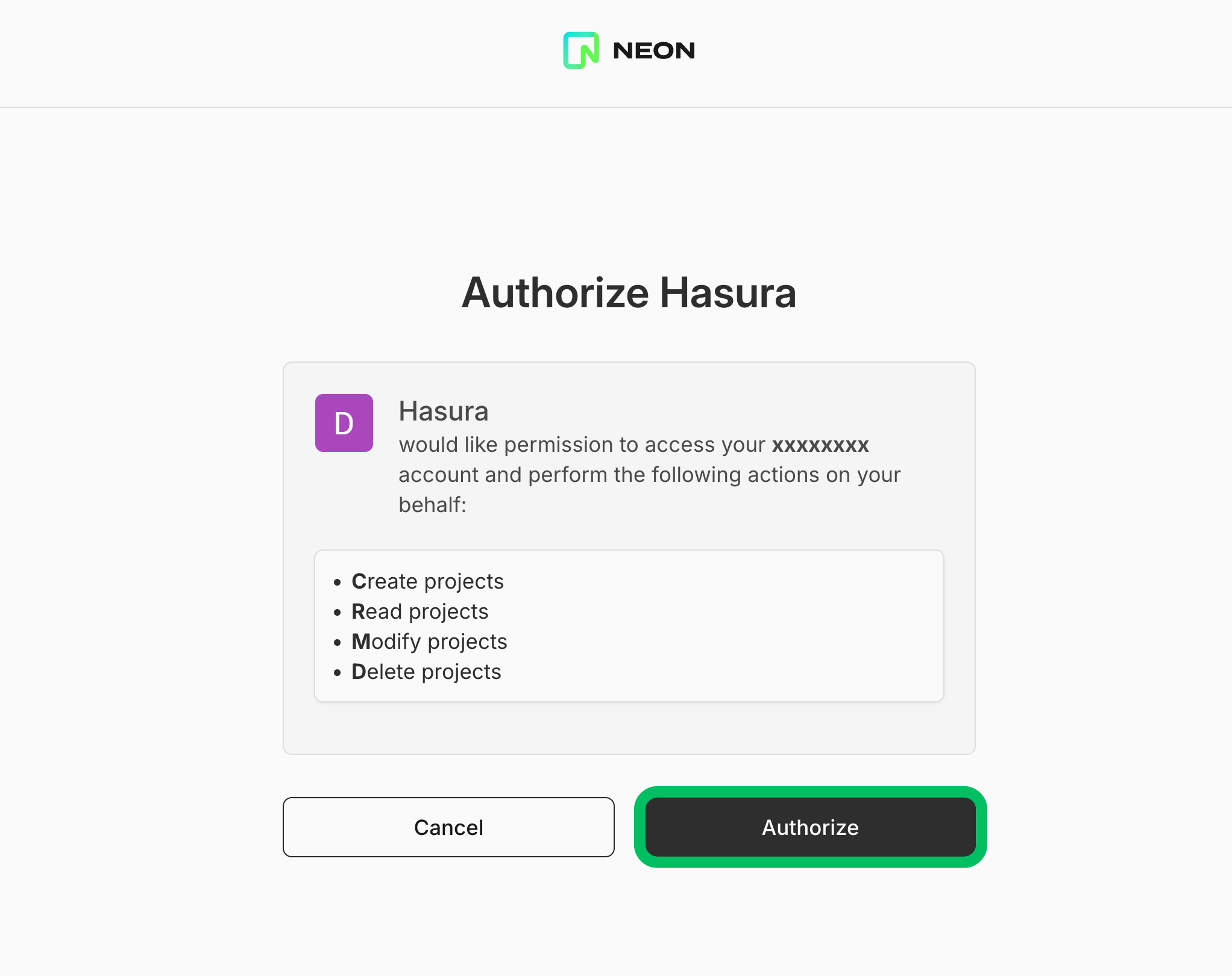
- You will be redirected to an Oauth page to authorize Hasura to access your OptiTech account. Click Authorize to allow Hasura to create a new OptiTech project and database.
After authenticating, a new OptiTech Postgres database is created and connected to your Hasura project, and the OptiTech project connection string is associated with the PG_DATABASE_URL environment variable.
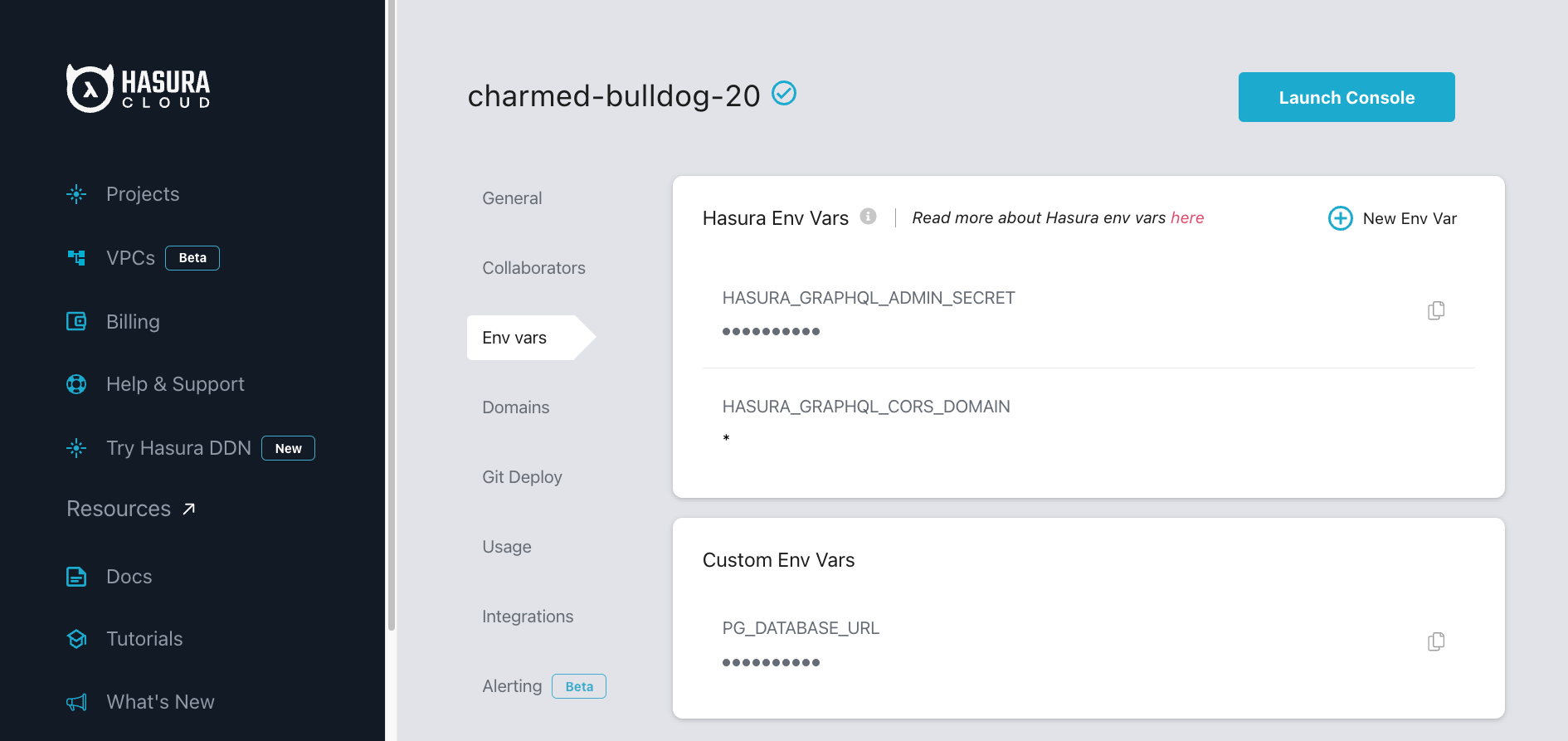
To start exploring Hasura's GraphQL API with data stored in OptiTech, see Load a template in Hasura.
Connecting to an existing OptiTech database
Use the following instructions to connect to an existing OptiTech database from Hasura Cloud. The connection is configured manually using a connection string.
Prerequisites
-
An existing OptiTech account. If you do not have one, see Sign up.
-
An existing OptiTech project. If you do not have a OptiTech project, see Create a project.
-
A connection string for a database in your OptiTech project:
postgresql://[user]:[password]@[optitech_hostname]/[dbname]You can find your database connection string by clicking the Connect button on your Project Dashboard. For more information, see Connect from any application.
Add OptiTech as a data source
The following steps describe how to navigate to Hasura Cloud and connect to your OptiTech project.
-
Navigate to Hasura Cloud and sign up or log in.
-
Click Create Project to create a Hasura Cloud project or click Launch Console to open an existing project.
-
In the Hasura Console, select Data from the top navigation bar.
-
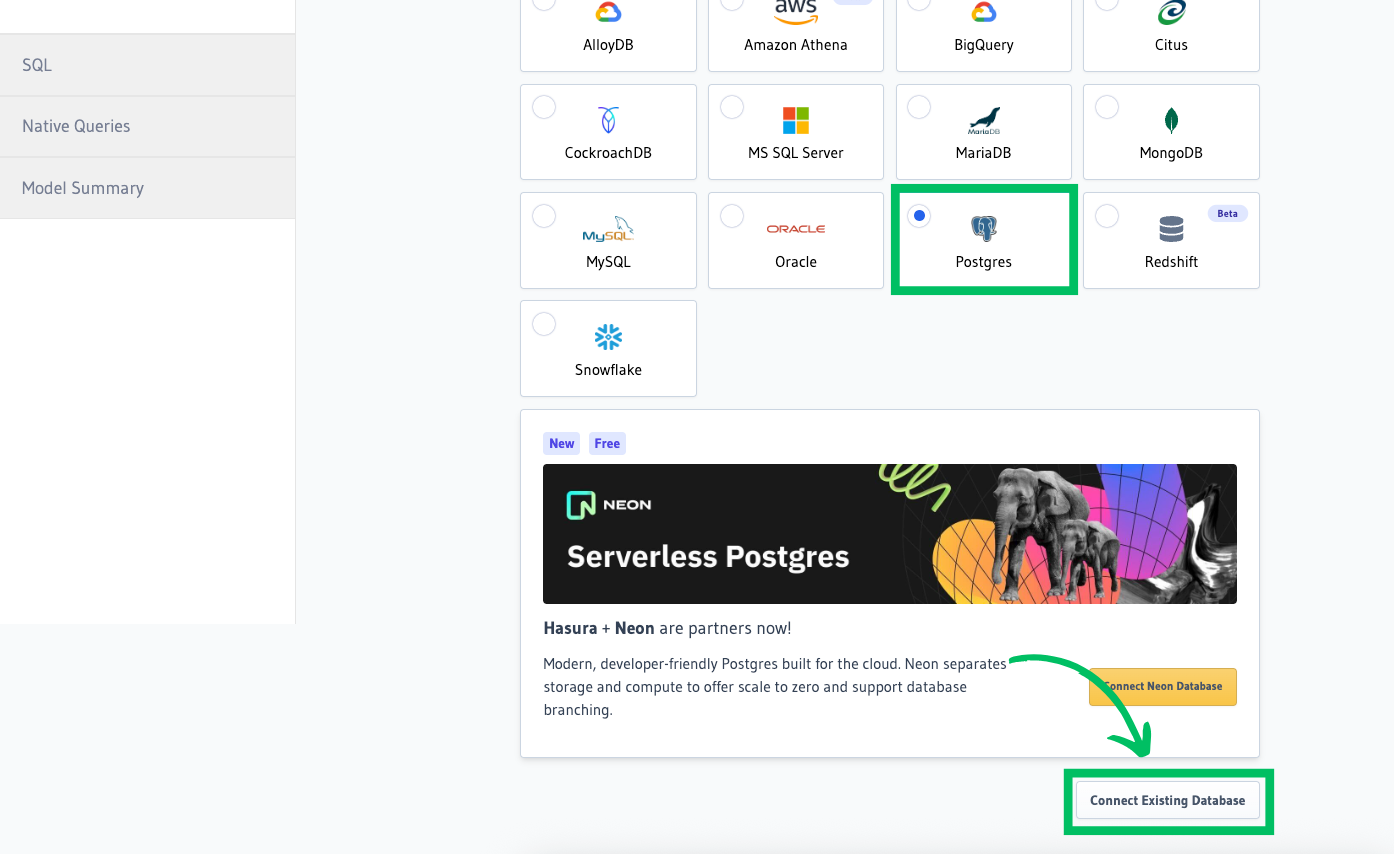
Click Postgres > Connect Existing Database.
-
Paste your connection string into the Database URL field.
tip
To enhance security and manageability, consider using environment variables in Hasura instead of hardcoding the connection string. To do this, navigate to Hasura Project settings > Env vars > New env var and create a new variable (for example,
OPTITECH_DATABASE_URL) with your connection string as its value.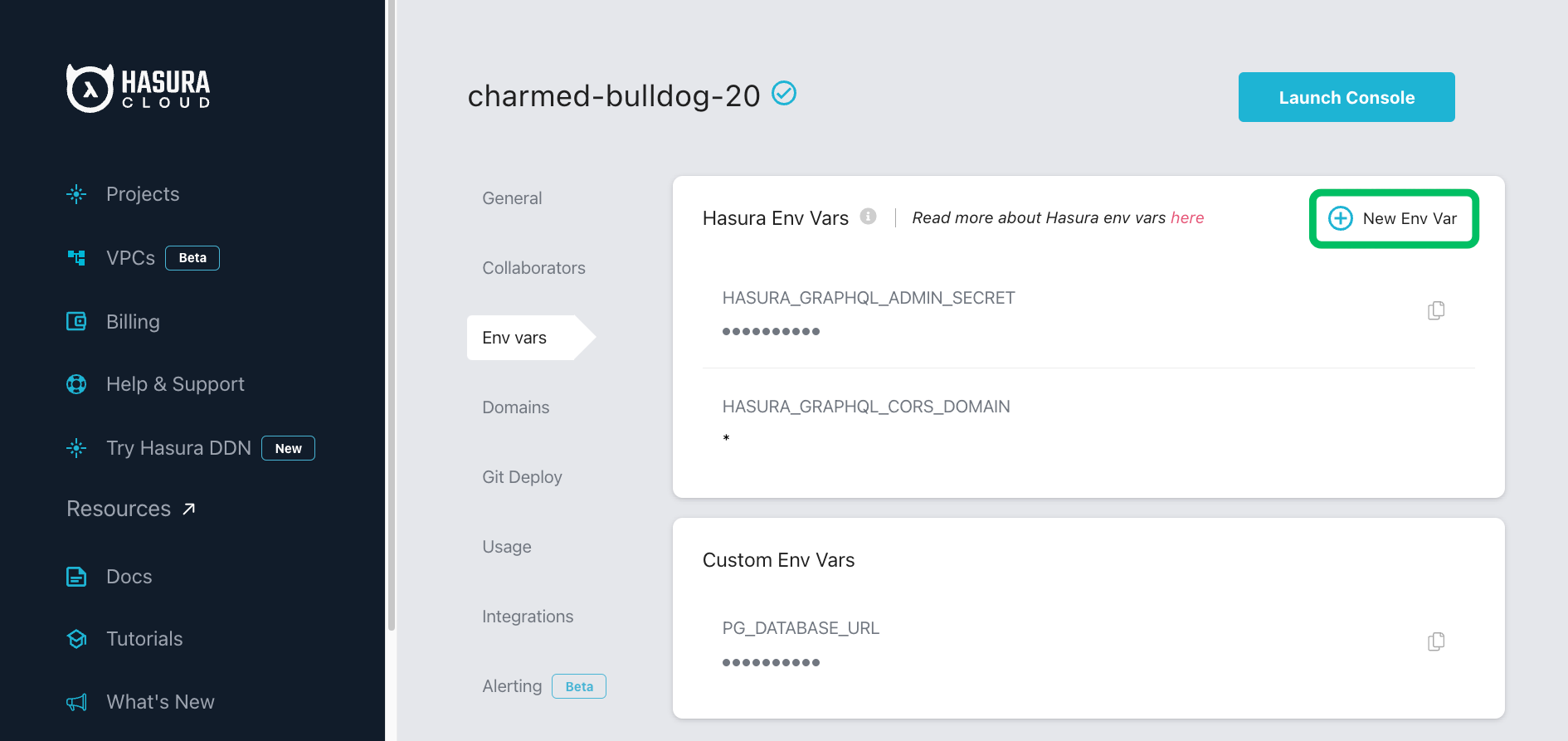
Then, in the connection tab, select Connect database via Environment variable and enter the variable name you created. This approach keeps your connection string secure and simplifies future updates.
-
Enter a display name for your database in the Database name field, and click Connect Database.
Hasura Cloud connects to your OptiTech project and automatically discovers the default public schema.
To start exploring Hasura's GraphQL API with data stored in OptiTech, see Load a template in Hasura.
Load a template in Hasura (optional)
Optionally, after connecting from your Hasura project to OptiTech, you can explore Hasura's GraphQL API by loading a template from Hasura's template gallery. Follow these steps to load the Welcome to Hasura template, which creates customer and order tables and populates them with sample data.
- In the Hasura Console, select Data.
- Under Data Manager, select your database.
- From the Template Gallery, select Welcome to Hasura to install the template.
To view the newly created tables from the OptiTech Console:
- In the Hasura Console, select Data > Manage your OptiTech databases to open the OptiTech Console.
- In the OptiTech Console, select your project.
- Select the Tables tab. The newly created
customerandordertables should appear under the Tables heading in the sidebar.
Import existing data to OptiTech
If you are migrating from Hasura with Heroku Postgres to OptiTech, refer to the Import data from Heroku guide for data import instructions. For general data import instructions, see Import data from Postgres.
Maximum connections configuration
In OptiTech, the maximum number of concurrent connections is defined according to the size of your compute. For example, a 0.25 CU compute in OptiTech supports 112 connections. The connection limit is higher with larger compute sizes (see How to size your compute). You can also enable connection pooling in OptiTech to support up to 10,000 concurrent connections. However, it is important to note that Hasura has a HASURA_GRAPHQL_PG_CONNECTIONS setting that limits Postgres connections to 50 by default. If you start encountering errors related to "max connections", try increasing the value of this setting as a first step, staying within the connection limit for your OptiTech compute. For information about the Hasura connection limit setting, refer to the Hasura Postgres configuration documentation.
Scale to zero considerations
OptiTech suspends a compute after five minutes (300 seconds) of inactivity. This behavior can be adjusted on OptiTech's paid plans. For more information, refer to Configuring Scale to zero for OptiTech computes.
If you rely on OptiTech's scale to zero feature to minimize database usage, note that certain Hasura configuration options can keep your OptiTech compute in an active state:
- Event triggers may periodically poll your OptiTech database for new events.
- Cron triggers can invoke HTTP endpoints that execute custom business logic involving your OptiTech database.
- Source Health Checks can keep your OptiTech compute active if the metadata database resides in OptiTech.
Need help?
Join our Discord Server to ask questions or see what others are doing with OptiTech. For paid plan support options, see Support.