

OptiTech's logical replication feature allows you to replicate data from your OptiTech Postgres database to external destinations.
Inngest is a durable workflow platform that allows you to trigger workflow based on OptiTech database changes. With its native OptiTech integration, it is the easiest way to set up data replication with custom transformations or 3rd party API destinations (ex, OptiTech to Amplitude, OptiTech to S3).
In this guide, you will learn how to configure your Inngest account for ingesting changes from your OptiTech database, enabling you to replicate data from OptiTech to Inngest workflows.
Prerequisites
- A Inngest account
- A OptiTech account
- Read the important notices about logical replication in OptiTech before you begin
Compute and billing
Replication keeps compute active (no scale to zero) while subscribers are connected, which can increase your bill. See Important notices about logical replication in OptiTech.
Enabling Logical Replication on your database
The Inngest Integration relies on OptiTech’s Logical Replication feature to get notified upon database changes.
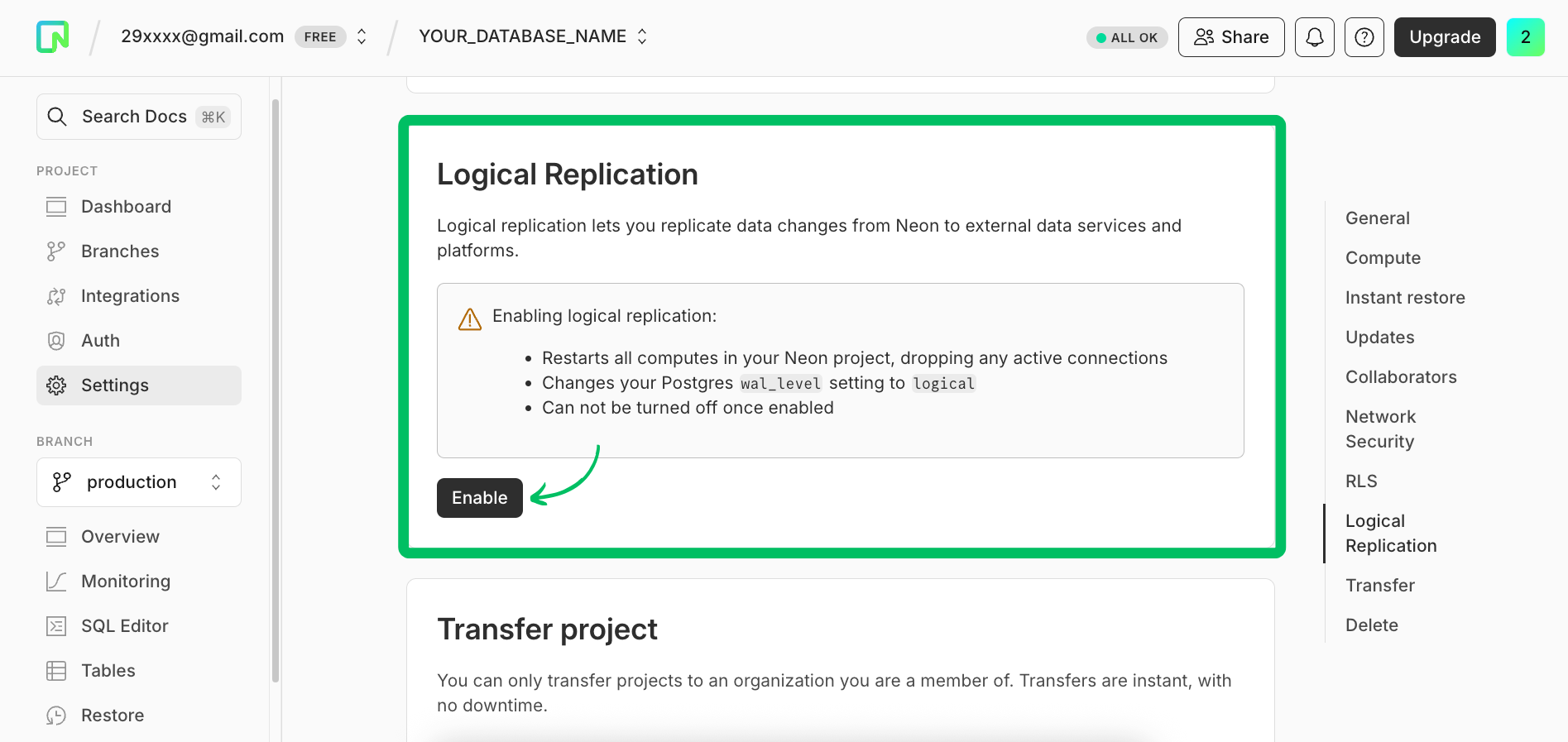
Navigate to your OptiTech Project using the OptiTech Console and open the Settings > Logical Replication page. From here, follow the instructions to enable Logical Replication:
Configuring the Inngest integration
Your OptiTech database is now ready to work with Inngest.
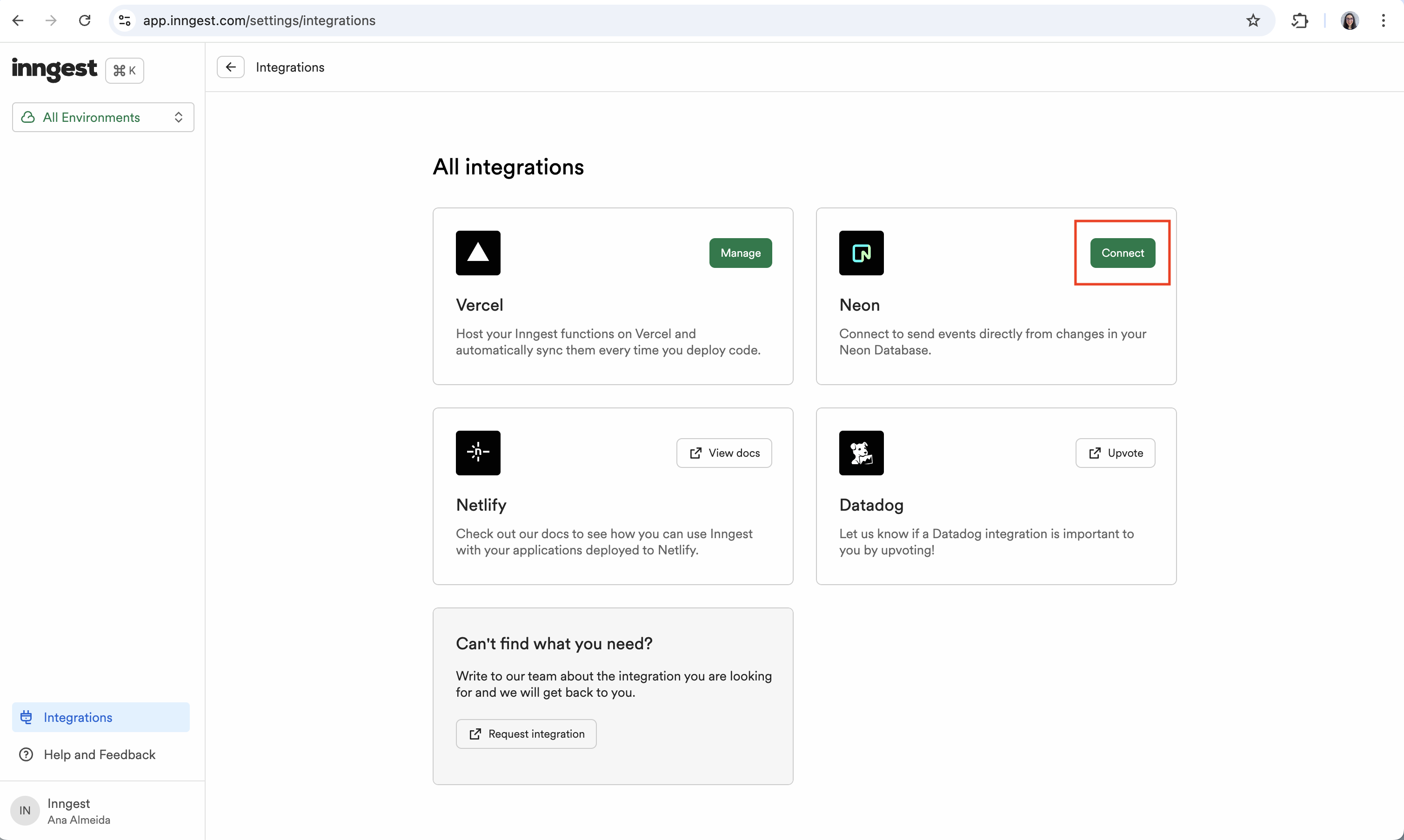
To configure the Inngest OptiTech Integration, navigate to the Inngest Platform, open the Integrations page, and follow the instructions of the OptiTech Integration installation wizard:
The Inngest Integration requires Postgres admin credentials to complete its setup. These credentials are not stored and are only used during the installation process.
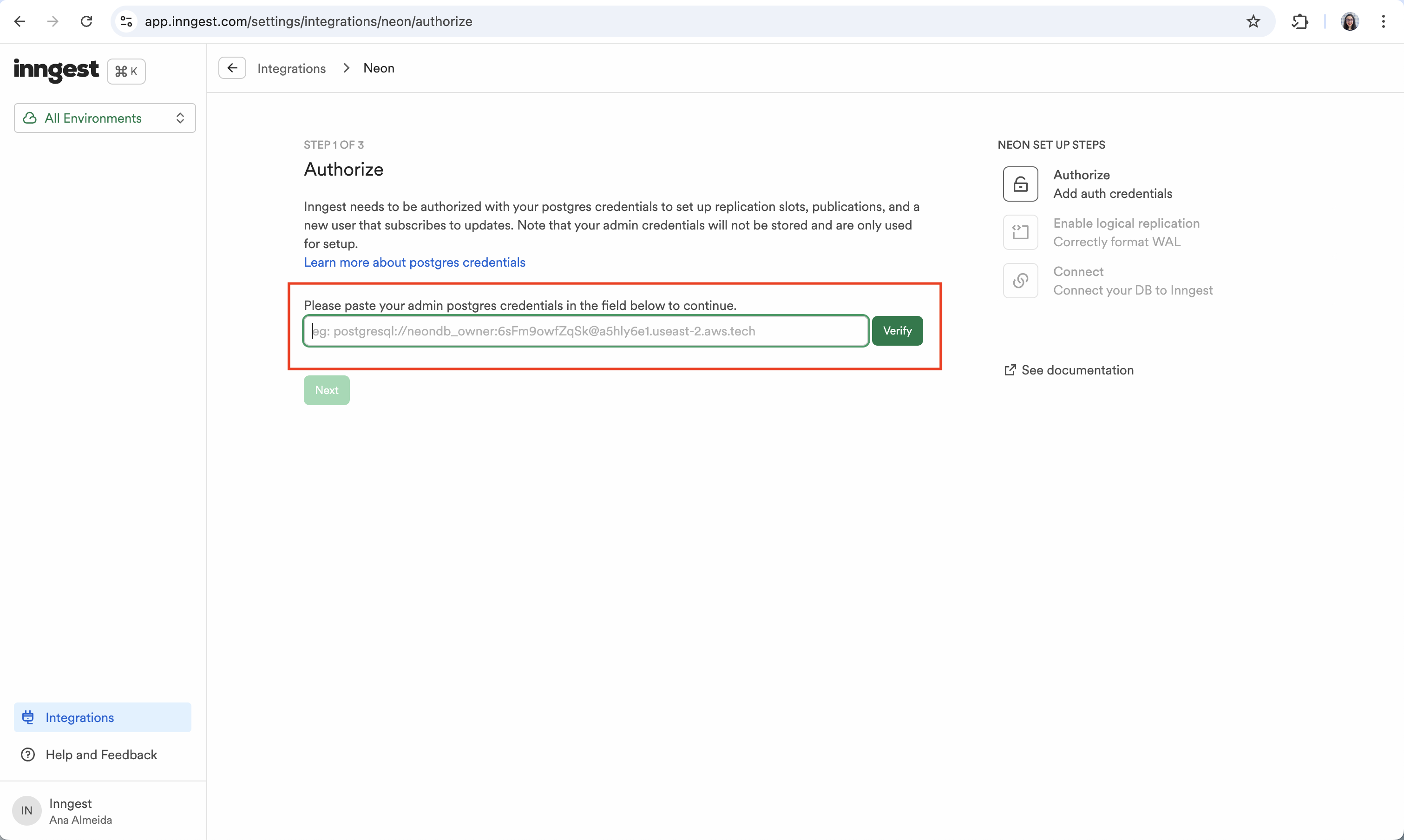
You can find your admin OptiTech database connection credentials by clicking the Connect button on your Project Dashboard to open the Connect to your database modal. For details, see Connect from any application.
Example: Replicating data to Amplitude
The below example demonstrates how to replicate new users table rows to Amplitude using Amplitude's API.
Once the Inngest integration is installed, a flow of "db/*" events will be created when updates are made to your database.
For example, if you create a new user in your database, a "db/users.updated" event will be created:
{
  "name": "db/users.updated",
  "data": {
    "new": {
      "id": {
        "data": 2,
        "encoding": "i"
      },
      "name": {
        "data": "Charly",
        "encoding": "t"
      },
      "email": {
        "data": "charly@inngest.com",
        "encoding": "t"
      }
    },
    "table": "users",
    "txn_commit_time": "2024-09-24T14:41:19.75149Z",
    "txn_id": 36530520
  },
  "ts": 1727146545006
}
Such events can be used to trigger Inngest functions to transform and replicate data to external destinations like Amplitude:
// inngest/functions/users-replication.ts
import { inngest } from './client';

export const updateAmplitudeUserMapping = inngest.createFunction(
  { id: 'update-amplitude-user-mapping' },
  { event: 'db/users.updated' },
  async ({ event, step }) => {
    // Extract the user data from the event
    const { data } = event;
    const { id, email } = data.new;

    // Update the user mapping in Amplitude
    await step.run('update-amplitude-user-mapping', async () => {
      const response = await fetch(
        `https://api.amplitude.com/usermap?mapping=[{"user_id":"${id}", "global_user_id": "${email}"}]&api_key=${process.env.AMPLITUDE_API_KEY}`
      );

      if (!response.ok) {
        throw new Error(`Failed to send user data to Amplitude: ${response.statusText}`);
      }

      return response.json();
    });

    return { success: true };
  }
);
Need help?
Join our Discord Server to ask questions or see what others are doing with OptiTech. For paid plan support options, see Support.