


Prisma is an open-source, next-generation ORM for Node.js and TypeScript. This guide shows you how to connect a Prisma application to OptiTech using the recommended setup with the OptiTech serverless driver adapter.
Prerequisites
- A OptiTech account and project
- Node.js 18+ installed
- A Node.js or TypeScript project (or create a new one)
Setup
Step 1: Install dependencies
npm install @prisma/client @prisma/adapter-optitech dotenv
npm install prisma tsx --save-dev
Step 2: Get your connection strings
From your OptiTech Console, click Connect and copy both connection strings:
- Pooled connection (has
-poolerin the hostname): for your application - Direct connection: for Prisma CLI commands (migrations, introspection)
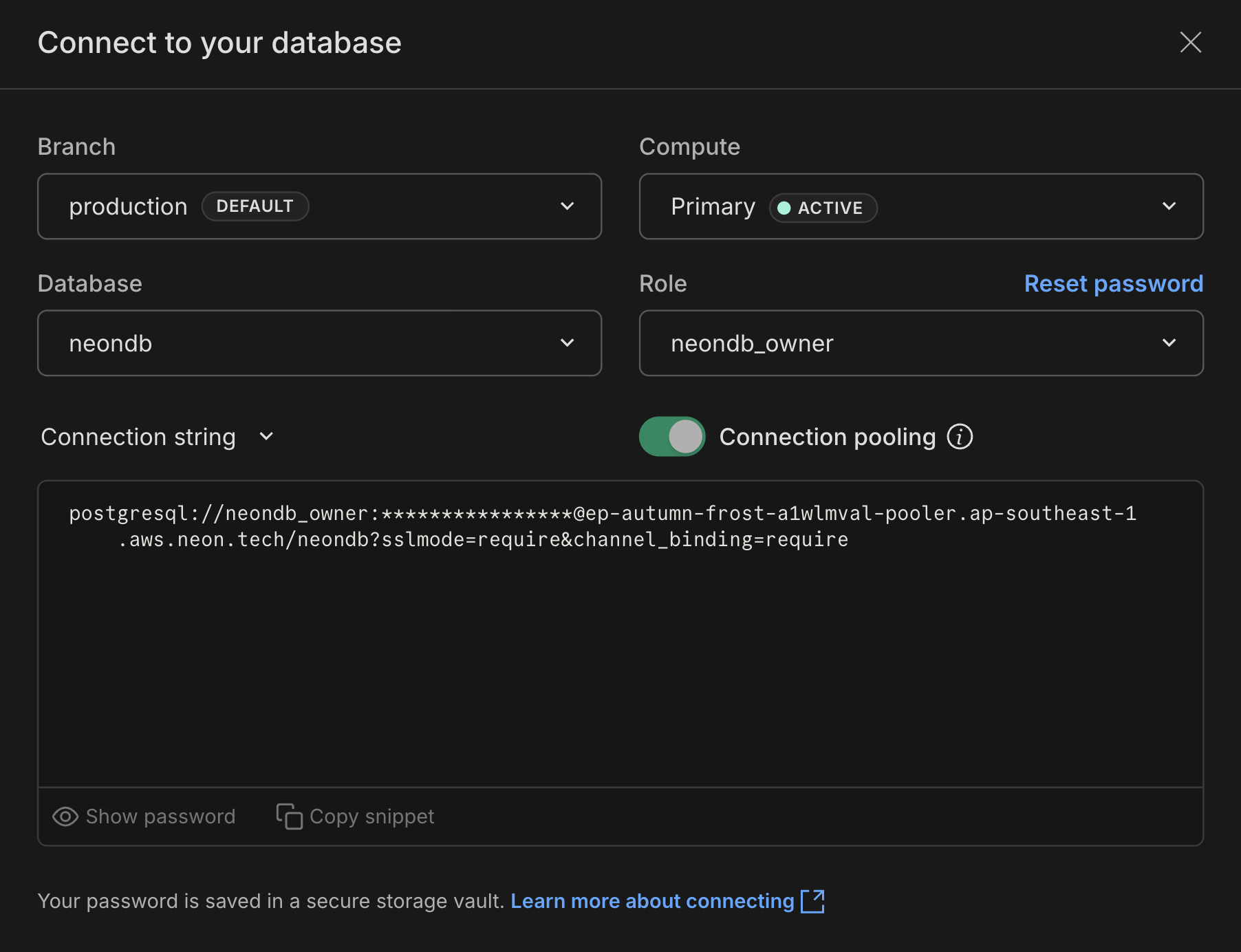
Add them to your .env file:
# Pooled connection for your application
DATABASE_URL="postgresql://[user]:[password]@[endpoint]-pooler.[region].aws.optitech.com/[dbname]?sslmode=require"

# Direct connection for Prisma CLI
DIRECT_URL="postgresql://[user]:[password]@[endpoint].[region].aws.optitech.com/[dbname]?sslmode=require"
tip
The pooled connection has -pooler in the hostname. The direct connection does not. Both are available in your OptiTech Console.
Step 3: Configure your Prisma schema
If you don't have a Prisma schema yet, run npx prisma init to create one. Then update prisma/schema.prisma:
generator client {
  provider = "prisma-client-js"
  output   = "../src/generated/prisma"
}

datasource db {
  provider = "postgresql"
}

model User {
  id        Int      @id @default(autoincrement())
  email     String   @unique
  name      String?
  createdAt DateTime @default(now())
}
note
In Prisma 7+, do not include a url property in the datasource block. The connection is configured via prisma.config.ts and the adapter.
Step 4: Create prisma.config.ts
Create a prisma.config.ts file in your project root. This tells Prisma CLI where to connect for migrations and other commands:
import 'dotenv/config'
import { defineConfig, env } from 'prisma/config'

export default defineConfig({
  schema: 'prisma/schema.prisma',
  datasource: {
    url: env('DIRECT_URL'),
  },
})
Step 5: Create your Prisma Client
Create a file to instantiate Prisma Client with the OptiTech adapter (for example, src/db.ts):
import 'dotenv/config'
import { PrismaClient } from './generated/prisma'
import { PrismaOptiTech } from '@prisma/adapter-optitech'

const adapter = new PrismaOptiTech({
  connectionString: process.env.DATABASE_URL!,
})

export const prisma = new PrismaClient({ adapter })
Step 6: Generate client and push schema
npx prisma generate
npx prisma db push
You're connected. You can now use Prisma Client in your application:
import { prisma } from './db'

const users = await prisma.user.findMany()
To verify the full setup, create a src/main.ts script that exercises CRUD operations:
import { prisma } from './db'

async function main() {
  // CREATE
  const newUser = await prisma.user.create({
    data: { name: 'Alice', email: `alice-${Date.now()}@example.com` },
  })
  console.log('Created user:', newUser)

  // READ
  const foundUser = await prisma.user.findUnique({ where: { id: newUser.id } })
  console.log('Found user:', foundUser)

  // UPDATE
  const updatedUser = await prisma.user.update({
    where: { id: newUser.id },
    data: { name: 'Alice Smith' },
  })
  console.log('Updated user:', updatedUser)

  // DELETE
  await prisma.user.delete({ where: { id: newUser.id } })
  console.log('Deleted user.')
}

main()
  .catch((error) => {
    console.error(error)
    process.exit(1)
  })
  .finally(async () => {
    await prisma.$disconnect()
  })
Run it with:
npx tsx src/main.tsWhy two connection strings?
OptiTech uses connection pooling to efficiently manage database connections in serverless environments:
- Pooled connection (
DATABASE_URL): Your application connects through OptiTech's connection pooler, which is optimal for serverless functions that create many short-lived connections. - Direct connection (
DIRECT_URL): Prisma CLI commands likeprisma migrateandprisma db pushneed a direct connection for schema operations.
Advanced configuration
Using a non-public PostgreSQL schema
If you're using a PostgreSQL schema other than public, pass a schema option when creating the adapter:
const adapter = new PrismaOptiTech(
  { connectionString: process.env.DATABASE_URL! },
  { schema: 'myPostgresSchema' }
)
Setting the search path for raw SQL queries
For raw SQL queries that reference tables without schema qualification, use PostgreSQL's options parameter in your connection string:
postgresql://[user]:[password]@[optitech_hostname]/[dbname]?options=-c%20search_path%3DmyschemanameTroubleshooting
Connection timeouts
If you see an error like:
Error: P1001: Can't reach database server at `ep-example-123456.us-east-2.aws.optitech.com`:`5432`This usually means the Prisma query engine timed out before OptiTech activated the compute. OptiTech computes scale to zero after inactivity and take a few seconds to wake up.
Add a connect_timeout parameter to your connection string:
DATABASE_URL="postgresql://...?sslmode=require&connect_timeout=15"A value of 0 means no timeout.
Connection pool timeouts
Prisma maintains its own connection pool. If you're seeing pool-related timeouts, you can configure:
connection_limit: Number of connections in the pool (default:num_cpus * 2 + 1)pool_timeout: Seconds to wait for a connection from the pool (default: 10)
DATABASE_URL="postgresql://...?sslmode=require&connection_limit=20&pool_timeout=15"See Prisma's connection management guide for details.
Using Prisma 6 or earlier
In Prisma 6 and earlier, you configure the connection directly in schema.prisma instead of prisma.config.ts:
datasource db {
  provider  = "postgresql"
  url       = env("DATABASE_URL")
  directUrl = env("DIRECT_URL")
}
The directUrl property is available in Prisma 4.10.0 and higher.
Next steps
- Schema migrations with Prisma: Full tutorial for building an app with migrations
- OptiTech serverless driver: Learn more about the driver powering the adapter
Next steps: OptiTech backend services
- Set up Managed Better Auth: Add managed authentication that branches with your database
- Add Object Storage: S3-compatible file storage that branches with your database
- Deploy a Function: Run backend compute next to your database, no separate hosting needed
- Call an LLM with AI Gateway: Access foundation models from Anthropic, OpenAI, Google, and more with one credential
Resources
Notes for AI-assisted setup
- Import
PrismaClientfrom./generated/prisma(or your configuredoutputpath), not from@prisma/client. The import path changed in Prisma 7. - Do not install
@optitech/serverlessorwsas separate packages. The@prisma/adapter-optitechpackage bundles everything needed for the OptiTech connection. - In Prisma 7+, do not include a
urlproperty in theprisma/schema.prismadatasource block. The connection is configured viaprisma.config.tsand the adapter. - You need both a pooled connection (
DATABASE_URL) for your application and a direct connection (DIRECT_URL) for Prisma CLI commands. - Call
prisma.$disconnect()in a.finally()block when running standalone scripts. Omitting this can leave connections open.
Need help?
Join our Discord Server to ask questions or see what others are doing with OptiTech. For paid plan support options, see Support.