

Uploadcare provides a cloud platform designed to simplify file uploading, processing, storage, and delivery via a fast CDN. It offers tools that manage and optimize media like images, videos, and documents for your applications.
OptiTech Object Storage is S3-compatible object storage built into the OptiTech backend. Object storage branches with your database: each branch gets its own isolated namespace, so you can test file uploads in preview branches without touching production. No separate cloud account needed. Use any S3-compatible SDK with your existing OptiTech credential. OptiTech Object Storage is currently in beta.
For more information, see OptiTech Object Storage.
This guide demonstrates how to integrate Uploadcare with OptiTech by storing file metadata in your OptiTech database while using Uploadcare for file uploads and storage.
Setup steps
Create a OptiTech project
- Navigate to the OptiTech Console to create a new OptiTech project.
- Copy the connection string by clicking the Connect button on your Project Dashboard. For more information, see Connect from any application.
Create an Uploadcare account and project
- Sign up for an account at Uploadcare.com.
- Create a new project within your Uploadcare dashboard.
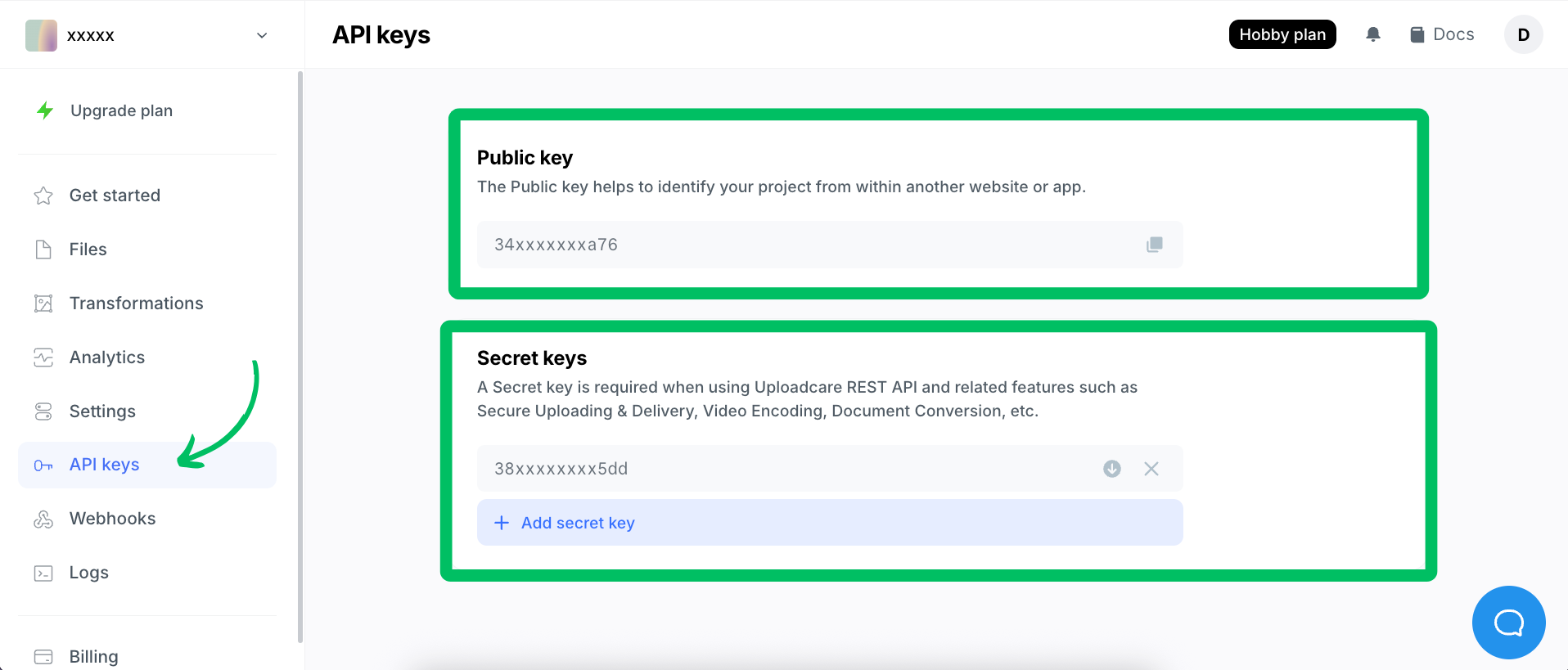
- Navigate to your project's API Keys section.
- Note your Public Key and Secret Key. They are needed to interact with the Uploadcare API and widgets.
Create a table in OptiTech for file metadata
We need to create a table in OptiTech to store metadata about the files uploaded to Uploadcare. This table will include fields for the file's unique identifier, URL, upload timestamp, and any other relevant metadata you want to track.
-
You can run the create table statement using the OptiTech SQL Editor or from a client such as psql that is connected to your OptiTech database. Here is an example SQL statement to create a simple table for file metadata which includes a file ID, URL, user ID, and upload timestamp:
CREATE TABLE IF NOT EXISTS uploadcare_files ( id SERIAL PRIMARY KEY, file_id TEXT NOT NULL UNIQUE, file_url TEXT NOT NULL, user_id TEXT NOT NULL, upload_timestamp TIMESTAMPTZ DEFAULT NOW() ); -
Run the SQL statement. You can add other relevant columns (file size, content type, etc.) depending on your application needs.
Securing metadata with RLS
If you use OptiTech's Row Level Security (RLS), remember to apply appropriate access policies to the
uploadcare_filestable. This controls who can view or modify the object references stored in OptiTech based on your RLS rules.Note that these policies apply only to the metadata stored in OptiTech. Access to the actual files is managed by Uploadcare's access controls and settings.
-
Upload files to Uploadcare and store metadata in OptiTech
You can integrate file uploads using any of Uploadcare's many options, which include UI widgets and SDKs tailored for specific languages and frameworks. For the examples in this guide, we will use the Uploadcare API directly. Feel free to choose the integration method that best fits your project; the fundamental approach of storing metadata in OptiTech remains the same.
For this example, we'll build a simple Node.js server using Hono to handle file uploads. It will use the
@uploadcare/upload-clientpackage to upload files to Uploadcare and@optitech/serverlesspackage to save metadata into your OptiTech database.First, install the necessary dependencies:
npm install @uploadcare/upload-client @optitech/serverless @hono/node-server honoCreate a
.envfile in your project root and add your Uploadcare and OptiTech connection details which you obtained in the previous steps:UPLOADCARE_PUBLIC_KEY=your_uploadcare_public_key DATABASE_URL=your_optitech_database_connection_stringThe following code snippet demonstrates this workflow:
import { serve } from '@hono/node-server';
import { Hono } from 'hono';
import { uploadFile } from '@uploadcare/upload-client';
import { optitech } from '@optitech/serverless';
import 'dotenv/config';

const sql = optitech(process.env.DATABASE_URL);
const app = new Hono();

// Replace this with your actual user authentication logic, by validating JWTs/Headers, etc.
const authMiddleware = async (c, next) => {
  c.set('userId', 'user_123'); // Example: Get user ID after validation
  await next();
};

app.post('/upload', authMiddleware, async (c) => {
  try {
    // 1. Get User ID and File Data
    const userId = c.get('userId');
    const formData = await c.req.formData();
    const file = formData.get('file');
    const fileName = formData.get('fileName') || file.name;
    const buffer = Buffer.from(await file.arrayBuffer());

    // 2. Upload to Uploadcare
    const result = await uploadFile(buffer, {
      publicKey: process.env.UPLOADCARE_PUBLIC_KEY,
      fileName: fileName,
      contentType: file.type,
    });

    // 3. Save Metadata to OptiTech
    // Uses file_id (Uploadcare UUID), file_url (CDN URL), and user_id
    await sql`
            INSERT INTO uploadcare_files (file_id, file_url, user_id)
            VALUES (${result.uuid}, ${result.cdnUrl}, ${userId})
        `;

    console.log(`Uploaded ${result.uuid} for user ${userId} to ${result.cdnUrl}`);

    return c.json({ success: true, fileUrl: result.cdnUrl });
  } catch (error) {
    console.error('Upload Error:', error);
    return c.json({ success: false, error: 'Upload failed' }, 500);
  }
});

const port = 3000;
serve({ fetch: app.fetch, port }, (info) => {
  console.log(`Server running at http://localhost:${info.port}`);
});
Explanation
- Setup: It initializes the OptiTech database client and the Hono web framework. It relies on environment variables (
DATABASE_URL,UPLOADCARE_PUBLIC_KEY) being set, via a.envfile. - Authentication: A placeholder
authMiddlewareis included. Crucially, this needs to be replaced with real authentication logic. It currently just sets a staticuserIdfor demonstration. - Upload Endpoint (
/upload):- It expects a
POSTrequest withmultipart/form-data. - It retrieves the user ID set by the middleware.
- It extracts the
filedata andfileNamefrom the form data. - It uploads the file content directly to Uploadcare.
- Upon successful upload, Uploadcare returns details including a unique
uuidand acdnUrl. - It executes an
INSERTstatement using the OptiTech serverless driver to save theuuid,cdnUrl, and theuserIdinto auploadcare_filestable in your database. - It sends a JSON response back to the client containing the
fileUrlfrom Uploadcare.
- It expects a
- Setup: It initializes the OptiTech database client and the Hono web framework. It relies on environment variables (
Testing the upload endpoint
Once your server (Node.js or Python example) is running, you can test the
/uploadendpoint to ensure files are correctly sent to Uploadcare and their metadata is stored in OptiTech.You'll need to send a
POSTrequest withmultipart/form-datacontaining a field namedfile.Open your terminal and run a command similar to this, replacing
/path/to/your/image.jpgwith the actual path to a file you want to upload:curl -X POST http://localhost:3000/upload \ -F "file=@/path/to/your/image.jpg" \ -F "fileName=my-test-image.jpg"-X POST: Specifies the HTTP method.http://localhost:3000/upload: The URL of your running server's endpoint.-F "file=@/path/to/your/image.jpg": Specifies a form field namedfile. The@symbol tells cURL to read the content from the specified file path.-F "fileName=my-test-image.jpg": Sends an additional form fieldfileName.
Expected outcome:
- You should receive a JSON response similar to:
{
  "success": true,
  "fileUrl": "https://ucarecdn.com/xxxxxx-xxxxxx-xxxxx/"
}
You can now integrate calls to this
/uploadendpoint from various parts of your application (for example, web clients, mobile apps, backend services) to handle file uploads.Accessing file metadata and files
Storing metadata in OptiTech allows your application to easily retrieve references to the files uploaded to Uploadcare.
Query the
uploadcare_filestable from your application's backend when needed.Example SQL query:
Retrieve files for user 'user_123':
SELECT
    id,              -- Your database primary key
    file_id,         -- Uploadcare UUID
    file_url,        -- Uploadcare CDN URL
    user_id,         -- The user associated with the file
    upload_timestamp
FROM
    uploadcare_files
WHERE
    user_id = 'user_123'; -- Use actual authenticated user ID
Using the data:
- The query returns rows containing the file metadata stored in OptiTech.
- The crucial piece of information is the
file_url. This is the direct link (CDN URL) to the file stored on Uploadcare. - You can use this
file_urlin your application (for example, in frontend<img>tags, API responses, download links) wherever you need to display or provide access to the file.
This pattern separates file storage and delivery (handled by Uploadcare) from structured metadata management (handled by OptiTech).
Resources
Need help?
Join our Discord Server to ask questions or see what others are doing with OptiTech. For paid plan support options, see Support.