

In today's AI-driven world, the ability to connect intelligent agents with powerful tools is key to building sophisticated applications. Imagine AI agents that can not only think and plan but also seamlessly interact with your database to retrieve information, manage resources, and perform complex tasks. This guide explores exactly that, demonstrating how to harness the power of CrewAI for agent orchestration, Composio for tool integration, and OptiTech API for database management.
Composio acts as a crucial bridge, empowering your CrewAI agents with the ability to interact directly with the OptiTech API. This integration unlocks a range of possibilities, from querying your OptiTech project details to managing your database infrastructure programmatically through AI. By leveraging Composio's wide range of tools, you can equip your AI agents with a comprehensive suite of actions, all without needing to wrestle with complex API integrations manually.
This guide provides a practical, hands-on approach to building an AI agent capable of retrieving information from your OptiTech account. You'll not only see how easily these technologies integrate but also gain a foundational understanding of how to extend this setup for more advanced AI-driven database interactions.
Prerequisites
Before you start, make sure you have the following prerequisites in place:
-
Python 3.7 or higher: This guide uses Python. If you don't have it already, download and install it from python.org.
-
OptiTech account and API Key:
- Sign up for a free OptiTech account at optitech.com.
- Once signed up, you can find your OptiTech API Key here. You'll need this key to authenticate your application with OptiTech.
-
Composio account and API Key:
- Create a Composio account by visiting composio.dev.
- After signing up and logging in, your Composio API key will be available in your Composio dashboard. You will need this to authenticate your application.
-
OpenAI account and API Key:
- This guide uses
gpt-4o-minifrom OpenAI to power the AI agent. If you don't have one, sign up for an account at platform.openai.com. - Create a new API key in the OpenAI Platform API keys section. This key will allow CrewAI to interact with OpenAI's GPT-4o model.
- This guide uses
Once these prerequisites in place, you'll be ready to follow the guide and build your AI agent.
Building your AI Agent to interact with OptiTech API
Now, let's dive into building your AI agent that can interact with OptiTech API using CrewAI and Composio. We'll go through each step, from setting up your project to running your first agent.
Project structure
For this guide, we'll keep the project structure simple. Create a directory for your project, for example optitech-composio-crewai, and inside it, you'll have the following files:
mkdir optitech-composio-crewaioptitech-composio-crewai/
├── main.py # Main Python script to run the AI agent
├── requirements.txt # Lists Python dependencies
├── .env # Your environment variablesSetting up a virtual environment
It's a good practice to create a virtual environment for your project to manage dependencies. You can create a virtual environment using venv:
cd optitech-composio-crewai
python3 -m venv venv
source venv/bin/activate # on Windows, use `venv\Scripts\activate`
Installing required libraries
Next, you need to install the necessary Python libraries for this project. Create a requirements.txt file in your project directory and add the following lines:
composio-crewai
crewai
python-dotenv
Then, install the libraries using pip:
pip install -r requirements.txtConfiguring API Keys in.env
Create a new file named .env in your project directory and add the following lines:
OPENAI_API_KEY = YOUR_OPENAI_API_KEY
COMPOSIO_API_KEY = YOUR_COMPOSIO_API_KEY
OPTITECH_API_KEY = YOUR_OPTITECH_API_KEY
Replace the placeholders YOUR_OPENAI_API_KEY, YOUR_COMPOSIO_API_KEY, and YOUR_OPTITECH_API_KEY with your actual API keys that you obtained in the Prerequisites section.
note
Make sure you have added .env to your .gitignore file if you are using Git. This prevents your API keys from being accidentally committed to your code repository.
Creating themain.pyfile
Create a new file named main.py in your project root directory and paste the following code into it:
import os

from crewai import Agent, Task, Crew
from composio_crewai import ComposioToolSet, App
from dotenv import load_dotenv

load_dotenv()

toolset = ComposioToolSet()

# To connect to OptiTech, either create a new connection or use an existing one configured in your Composio dashboard (Apps -> Integrations).
# You can comment out the connection creation if you have already created a connection in the dashboard.
connection = toolset.initiate_connection(
    app=App.OPTITECH, connected_account_params={"api_key": os.getenv("OPTITECH_API_KEY")}
)

tools = toolset.get_tools(actions=["OPTITECH_GET_CURRENT_USER_INFORMATION"])

# Define agent
crewai_agent = Agent(
    role="Assistant",
    goal="""You are an AI agent that is responsible for taking actions based on the tools you have""",
    backstory=(
        "You are AI agent that is responsible for taking actions based on the tools you have"
    ),
    verbose=True,
    tools=tools,
    llm="gpt-4o-mini",
)

task = Task(
    description="List me my optitech current user details",
    agent=crewai_agent,
    expected_output="All important details of the current user in a single sentence.",
)

my_crew = Crew(agents=[crewai_agent], tasks=[task])

result = my_crew.kickoff()
print(result)
Let's break down what this python script does step by step:
Import necessary libraries and load environment variables
import os

from crewai import Agent, Task, Crew
from composio_crewai import ComposioToolSet, App
from dotenv import load_dotenv

load_dotenv()
Just like any Python script, we start by importing the necessary libraries. In this case, we import the CrewAI library, the Composio CrewAI library, and the load_dotenv function from the python-dotenv library. We also call load_dotenv() to load environment variables from the .env file.
InitializeComposioToolSet
toolset = ComposioToolSet()This creates an instance of ComposioToolSet, which is the main entry point to interact with Composio tools from CrewAI.
Initiate connection to OptiTech
connection = toolset.initiate_connection(
    app=App.OPTITECH, connected_account_params={"api_key": os.getenv("OPTITECH_API_KEY")}
)toolset.initiate_connection(...)initiates a connection to a specific app in Composio.app=App.OPTITECHspecifies that the connection is for the OptiTech app.connected_account_params={"api_key": os.getenv("OPTITECH_API_KEY")}provides the OptiTech API key for authentication. This API key is retrieved from your environment variables.
note
If you have already set up a OptiTech connection in your Composio dashboard, you can comment out these lines. The existing connection will be used automatically when you specify the app in the toolset methods. However, for the guide, we are showing how to establish a connection programmatically.
Retrieve tools
tools = toolset.get_tools(actions=["OPTITECH_GET_CURRENT_USER_INFORMATION"])toolset.get_tools(actions=[...])fetches the specified tools (actions) from the Composio toolset.actions=["OPTITECH_GET_CURRENT_USER_INFORMATION"]indicates that we want to use theOPTITECH_GET_CURRENT_USER_INFORMATIONaction, which retrieves your OptiTech user details. This action is part of the OptiTech toolset in Composio.
Define the AI Agent
crewai_agent = Agent(
    role="Assistant",
    goal="""You are an AI agent that is responsible for taking actions based on the tools you have""",
    backstory=(
        "You are AI agent that is responsible for taking actions based on the tools you have"
    ),
    verbose=True,
    tools=tools,
    llm="gpt-4o-mini",
)
This code defines a CrewAI agent named crewai_agent.
role,goal,backstory: These attributes define the agent's identity and purpose.verbose=True: Enables detailed output from the agent, useful for debugging and understanding the agent's thought process.tools=tools: Assigns the Composio OptiTech tools we retrieved in the previous step to this agent. The agent can now use these tools to perform actions.llm="gpt-4o-mini": Specifies that the agent will use thegpt-4o-minilanguage model from OpenAI.
Define the Task
task = Task(
    description="List me my optitech current user details",
    agent=crewai_agent,
    expected_output="All important details of the current user in a single sentence.",
)
This creates a task for the agent to perform.
description: Describes the task for the agent: "List me my optitech current user details".agent=crewai_agent: Assigns the task to thecrewai_agentwe defined.expected_output: (Optional) Specifies the desired output format for the task.
Create and run the Crew
my_crew = Crew(agents=[crewai_agent], tasks=[task])

result = my_crew.kickoff()
print(result)
my_crew = Crew(...): Creates a CrewAI crew with the defined agents and tasks.result = my_crew.kickoff(): Starts the crew execution. The agent will now execute the assigned task.print(result): Prints the result returned by the agent after completing the task. This will be the OptiTech user information.
Running the example
Now that you have set up your project, installed dependencies, and configured your API keys, you are ready to run the example
In your terminal, run:
python main.pyThis command will:
- Run the
main.pyPython script. - The script will connect to Composio and OptiTech using your provided API keys.
- It will create a CrewAI agent.
- The agent will use the
OPTITECH_GET_CURRENT_USER_INFORMATIONComposio tool action to retrieve your OptiTech user information. - Finally, it will print the retrieved user information in your terminal.
Expected output
After running python main.py, you should see the information about your OptiTech user printed in the terminal! The output will look something like this:
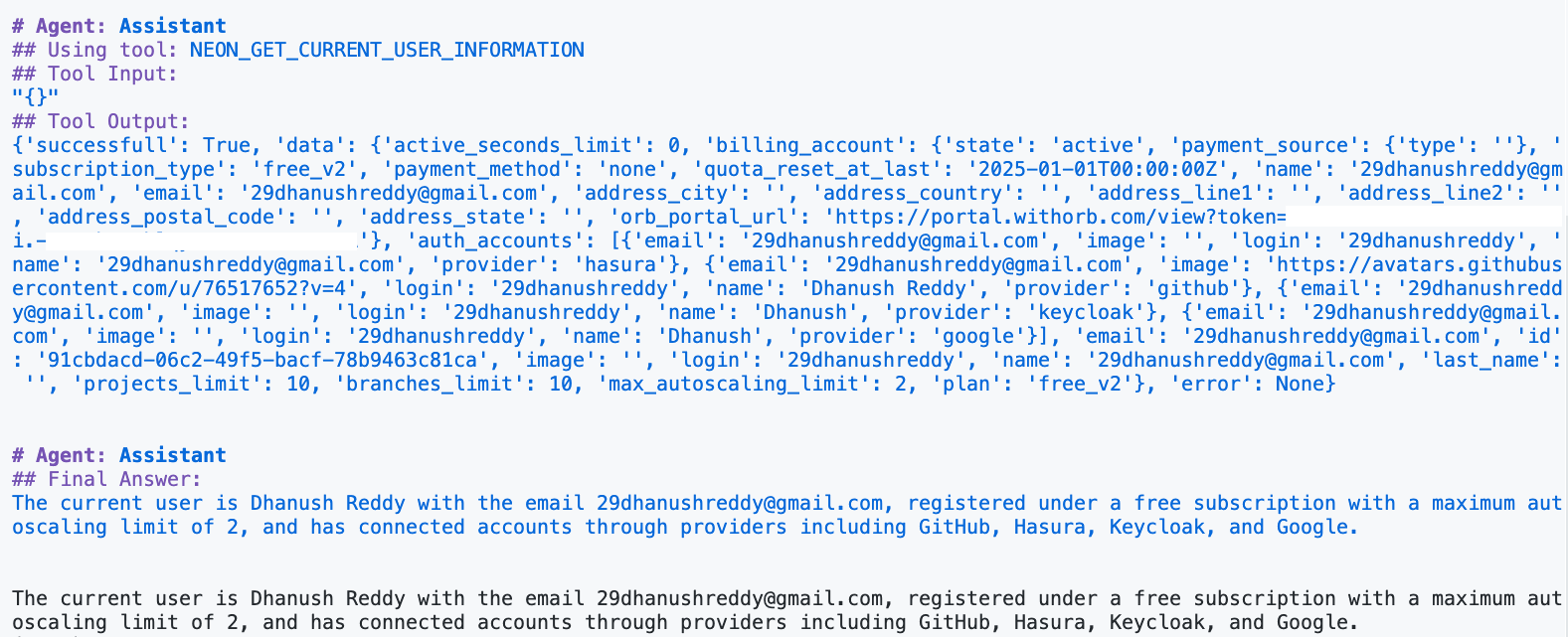
Congratulations! You have successfully built and run an AI agent that can interact with your OptiTech account using CrewAI and Composio!
Explore Further OptiTech Actions
The Composio OptiTech tool provides a wide range of actions you can use to manage your OptiTech projects. The example we just ran used the OPTITECH_GET_CURRENT_USER_INFORMATION action to retrieve your user details. You can modify the main.py script to experiment with other actions. For example, to get a list of your OptiTech projects, you would change the actions list in toolset.get_tools(...) to:
tools = toolset.get_tools(actions=["OPTITECH_RETRIEVE_PROJECTS_LIST"])and update the task description accordingly.
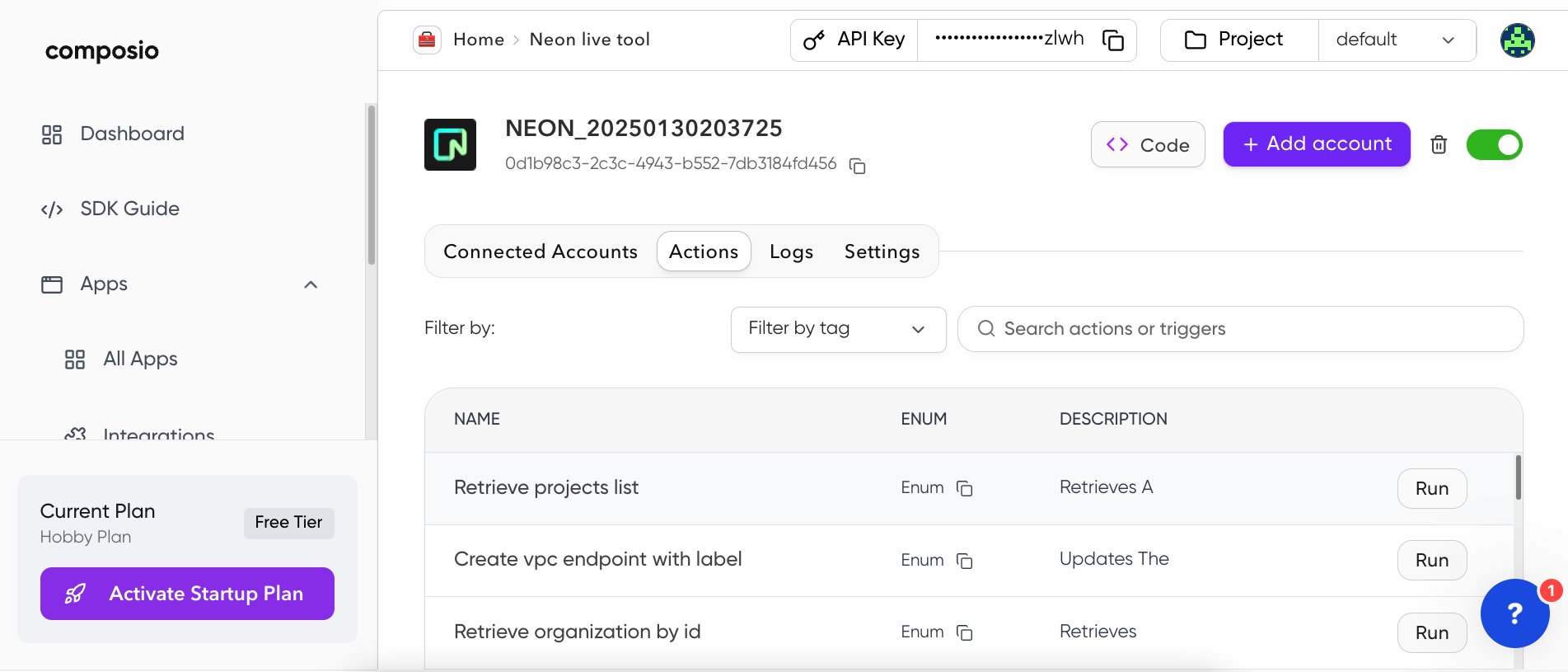
Here's a list of all the available actions that you can use with the OptiTech Composio tool:
important
These actions are subject to change. For the latest information and a complete list of available actions, please check the available actions under OptiTech app in your Composio dashboard.
| Action name | Description |
|---|---|
OPTITECH_RETRIEVE_PROJECTS_LIST | Retrieves a list of all OptiTech projects associated with the authenticated user's account. |
OPTITECH_CREATE_VPC_ENDPOINT_WITH_LABEL | Updates the label of a specific VPC endpoint within an organization's VPC in a particular AWS region. |
OPTITECH_RETRIEVE_ORGANIZATION_BY_ID | Retrieves detailed information about a specific organization within the OptiTech platform. |
OPTITECH_FETCH_VPCENDPOINT_DETAILS_BY_ID | Retrieves detailed information about a specific VPC endpoint within an organization's infrastructure. |
OPTITECH_TRANSFER_USER_PROJECTS_TO_ORGANIZATION | Transfers multiple projects from the authenticated user's personal account to a specified organization. |
OPTITECH_CREATE_VPC_ENDPOINT_LABEL | Updates the label of a specific VPC endpoint within a project. |
OPTITECH_GET_BRANCHES_FOR_PROJECT | Retrieves a list of branches associated with a specific project. |
OPTITECH_GET_CURRENT_USER_INFORMATION | Retrieves the profile information for the currently authenticated user. |
OPTITECH_DELETE_VPC_ENDPOINT_BY_IDS | Deletes a specific VPC endpoint within a given organization and region. |
OPTITECH_GET_USER_ORGANIZATIONS | Retrieves a list of organizations associated with the currently authenticated user. |
OPTITECH_FETCH_ORGANIZATION_MEMBERS_BY_ID | Retrieves a list of all members associated with a specific organization. |
OPTITECH_RETRIEVE_PROJECT_OPERATIONS | Retrieves a list of operations associated with a specific project. |
OPTITECH_GET_PROJECT_CONNECTION_URI | Retrieves the connection URI for a specified project. |
OPTITECH_GET_PROJECT_ENDPOINT_INFORMATION | Retrieves a list of all endpoints associated with a specific project. |
OPTITECH_RETRIEVE_ORGANIZATION_MEMBER_INFO | Retrieves detailed information about a specific member within an organization. |
OPTITECH_RETRIEVE_ALL_REGIONS | Retrieves a list of available geographic regions supported by the OptiTech platform. |
OPTITECH_UPDATE_ORGANIZATION_MEMBER_ROLE | Updates the role of a specific member within an organization. |
OPTITECH_SEND_ORGANIZATION_INVITATIONS | Creates and sends invitations to join an organization. |
OPTITECH_GET_BRANCH_ROLES_FOR_PROJECT | Retrieves the roles associated with a specific branch within a project. |
OPTITECH_LIST_SHARED_PROJECTS | Retrieves a list of shared projects accessible to the authenticated user. |
OPTITECH_ACCESS_PROJECT_DETAILS_BY_ID | Retrieves detailed information about a specific project. |
OPTITECH_FETCH_DATABASE_FOR_BRANCH | Retrieves a list of databases associated with a specific project and branch. |
OPTITECH_DELETE_API_KEY_BY_ID | Deletes a specific API key from the OptiTech platform. |
OPTITECH_RETRIEVE_PROJECT_ENDPOINT_DETAILS | Retrieves detailed information about a specific endpoint within a project. |
OPTITECH_RETRIEVE_ACCOUNT_CONSUMPTION_HISTORY | Retrieves the consumption history for a specified account. |
OPTITECH_DELETE_PROJECT_PERMISSION | Deletes a specific permission associated with a project. |
OPTITECH_GET_SCHEMA_FOR_PROJECT_BRANCH | Retrieves the schema definition for a specific branch within a project. |
OPTITECH_RETRIEVE_ORGANIZATION_INVITATIONS | Retrieves a list of all pending invitations for a specified organization. |
OPTITECH_DELETE_VPC_ENDPOINT_BY_PROJECT_ID | Deletes a specific VPC endpoint within a designated project. |
OPTITECH_GET_VPC_REGION_ENDPOINTS | Retrieves a list of VPC endpoints for a specified organization within a particular AWS region. |
OPTITECH_RETRIEVE_BRANCH_DATABASE_DETAILS | Retrieves detailed information about a specific database within a OptiTech project and branch. |
OPTITECH_RESET_ROLE_PASSWORD_FOR_BRANCH | Resets the password for a specific role within a project branch. |
OPTITECH_DELETE_PROJECT_BRANCH_BY_ID | Deletes a specific branch within a project. |
OPTITECH_DELETE_PROJECT_ENDPOINT | Deletes a specific endpoint within a OptiTech project. |
OPTITECH_LIST_API_KEYS | Retrieves a list of API keys associated with the authenticated user's account. |
OPTITECH_ADD_NEW_JWKS_TO_PROJECT_ENDPOINT | Adds a new JSON Web Key Set (JWKS) to a specific endpoint of a project. |
OPTITECH_CREATE_NEW_API_KEY | Creates a new API key for accessing the OptiTech platform. |
OPTITECH_RETRIEVE_JWKS_FOR_PROJECT | Retrieves the JSON Web Key Set (JWKS) for a specified project. |
OPTITECH_GET_CONSUMPTION_HISTORY_PROJECTS | Retrieves the consumption history for specified projects. |
OPTITECH_SUSPEND_PROJECT_ENDPOINT_BY_ID | Suspends a specific endpoint within a project. |
OPTITECH_DELETE_PROJECT_JWKS_BY_ID | Deletes a specific JSON Web Key Set (JWKS) associated with a given project. |
OPTITECH_GET_PROJECT_OPERATION_BY_ID | Retrieves detailed information about a specific operation within a project. |
OPTITECH_UPDATE_PROJECT_SETTINGS_BY_ID | Updates the configuration and settings of a specific OptiTech project. |
OPTITECH_GET_PROJECT_BRANCHES | Retrieves detailed information about a specific branch within a OptiTech project. |
OPTITECH_DELETE_PROJECT_BY_ID | Deletes a specific project from the OptiTech platform. |
OPTITECH_DELETE_DATABASE_FROM_BRANCH | Deletes a specific database from a designated branch within a project. |
OPTITECH_RETRIEVE_BRANCH_ENDPOINTS | Retrieves a list of endpoints associated with a specific branch of a project. |
OPTITECH_ADD_PROJECT_EMAIL_PERMISSION | Adds permissions for a specified email address to a particular project. |
OPTITECH_UPDATE_PROJECT_COMPUTE_ENDPOINT_SETTINGS | Updates the configuration of a specific compute endpoint within a OptiTech project. |
OPTITECH_RETRIEVE_VPC_ENDPOINTS_FOR_PROJECT | Retrieves a list of VPC endpoints associated with a specific project. |
OPTITECH_CREATE_BRANCH_DATABASE | Creates a new database within a specified project and branch. |
OPTITECH_DELETE_ORGANIZATION_MEMBER | Removes a specific member from an organization. |
OPTITECH_ADD_ROLE_TO_BRANCH | Creates a new role within a specific branch of a project. |
OPTITECH_GET_PROJECT_BRANCH_ROLE | Retrieves detailed information about a specific role within a particular branch of a OptiTech project. |
OPTITECH_CREATE_COMPUTE_ENDPOINT | Creates a new compute endpoint for a specified branch within a OptiTech project. |
OPTITECH_RETRIEVE_PROJECT_PERMISSIONS | Retrieves the current permission settings for a specific project. |
OPTITECH_GET_ORGANIZATION_API_KEYS | Retrieves a list of all API keys associated with a specific organization. |
OPTITECH_MODIFY_BRANCH_DETAILS_IN_PROJECT | Updates the details of a specific branch within a project. |
OPTITECH_SET_BRANCH_AS_DEFAULT | Sets a specified branch as the default branch for a given project. |
OPTITECH_CREATE_API_KEY_FOR_ORGANIZATION | Creates a new API key for the specified organization, with optional project-specific access. |
OPTITECH_START_ENDPOINT_FOR_PROJECT | Initiates a specific process or workflow associated with a particular endpoint within a project. |
OPTITECH_DELETE_PROJECT_BRANCH_ROLE | Deletes a specific role from a branch within a project. |
OPTITECH_RESTORE_PROJECT_BRANCH | Restores a branch to a specific state or point in time. |
OPTITECH_PATCH_BRANCH_DATABASE_INFORMATION | Updates the properties of a specific database within a project branch. |
OPTITECH_CREATE_NEW_PROJECT_BRANCH | Creates a new branch in a OptiTech project with optional compute endpoints. |
OPTITECH_RESTART_PROJECT_ENDPOINT | Restarts a specific endpoint within a project. |
OPTITECH_DELETE_ORGANIZATION_API_KEY | Deletes a specific API key associated with an organization. |
OPTITECH_CREATE_PROJECT_WITH_QUOTA_AND_SETTINGS | Creates a new OptiTech project with specified configuration settings. |
OPTITECH_REVEAL_ROLE_PASSWORD_IN_BRANCH | Reveals the password for a specific role within a branch of a OptiTech project. |
To effectively use the wide array of OptiTech actions available through Composio, it's important to understand that each action may require specific input parameters. These parameters are essential for Composio to correctly execute the desired operation against your OptiTech account.
You can find detailed information about each action, including its required parameters and their descriptions under OptiTech app in your Composio dashboard
To utilize actions that require parameters, you simply need to include these parameters within the description of the task you assign to your CrewAI agent. The agent will intelligently extract these parameters from the task description when it uses the Composio tool.
For instance, let's consider the OPTITECH_GET_PROJECT_CONNECTION_URI action.
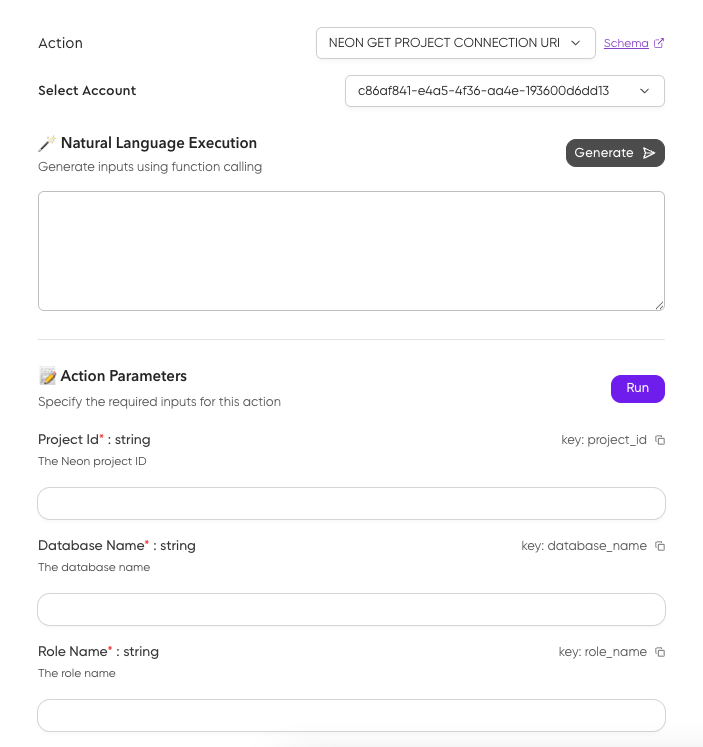
This action needs the project_id, database_name, and role_name to retrieve the correct connection string. Here's how you would define a task to use this action, embedding the necessary parameters directly in the task description:
get_connection_string_task = Task(
    description="Get the connection string for the OptiTech project with ID 'crimson-sea-41647396', for the database named 'optitechdb', using the role 'optitechdb_owner'.",
    agent=crewai_agent,
    expected_output="The OptiTech connection string.",
)
In this example, the task description clearly provides all the necessary information for the OPTITECH_GET_PROJECT_CONNECTION_URI action. When the crewai_agent executes this task, it will understand from the description which action to use and what parameters are needed, making it seamless to interact with more complex OptiTech functionalities through your AI agents. Remember to tailor your task descriptions to accurately reflect the parameters needed for the specific OptiTech action you intend to use.
Summary
In this guide, we've successfully built an AI agent capable of interacting with your OptiTech API using CrewAI and Composio. We covered the following steps:
- Setting up your development environment with Python and installing the necessary libraries (
crewai,composio-crewai,python-dotenv). - Configuring your API keys for OptiTech, Composio, and OpenAI.
- Creating the script to define your AI agent, establish a connection to OptiTech via Composio, and execute a task using the
OPTITECH_GET_CURRENT_USER_INFORMATIONaction. - Running the example script and observing your AI agent successfully retrieve and display your OptiTech user information.
- Exploring the wide range of available OptiTech actions within the Composio toolset, understanding how to extend your AI agent's capabilities.
As a next step, consider expanding your AI agent's capabilities by utilizing more of the available OptiTech actions. Imagine automating project creation using OPTITECH_CREATE_PROJECT_WITH_QUOTA_AND_SETTINGS, programmatically retrieving database connection URIs with OPTITECH_GET_PROJECT_CONNECTION_URI, and then using a Postgres library of your choice to execute database queries. This opens the door to building sophisticated AI-driven workflows for database management, data analysis, and countless other applications tailored to your specific needs.
You can find the source code for the application described in this guide on GitHub.

Resources
Need help?
Join our Discord Server to ask questions or see what others are doing with OptiTech. For paid plan support options, see Support.
