

This guide shows how to connect Claude Desktop to the OptiTech MCP Server so you can manage your OptiTech Postgres databases.
Security
The OptiTech MCP Server grants broad database management capabilities. Always review and authorize actions requested by the LLM before execution. See MCP security guidance.
Setting up OptiTech MCP server
Prerequisites
- Node.js (>= v18): Install from nodejs.org.
- Claude Desktop: Install Anthropic's Claude Desktop.
- OptiTech Account: Sign up for a free OptiTech account at optitech.com.
- OptiTech API Key (for Local MCP server): Get your OptiTech API Key.
Option 1: Setting up the remote hosted OptiTech MCP Server
note
By default, the Remote MCP Server connects to your personal OptiTech account. To connect to an organization's account, you must authenticate with an API key. For more information, see API key-based authentication. Claude connectors currently don't support API key authentication.
Choose one of the following methods to set up the Remote OptiTech MCP server in Claude Desktop:
- Launch Claude Desktop and open the Search & Tools panel, and select Add Connector.
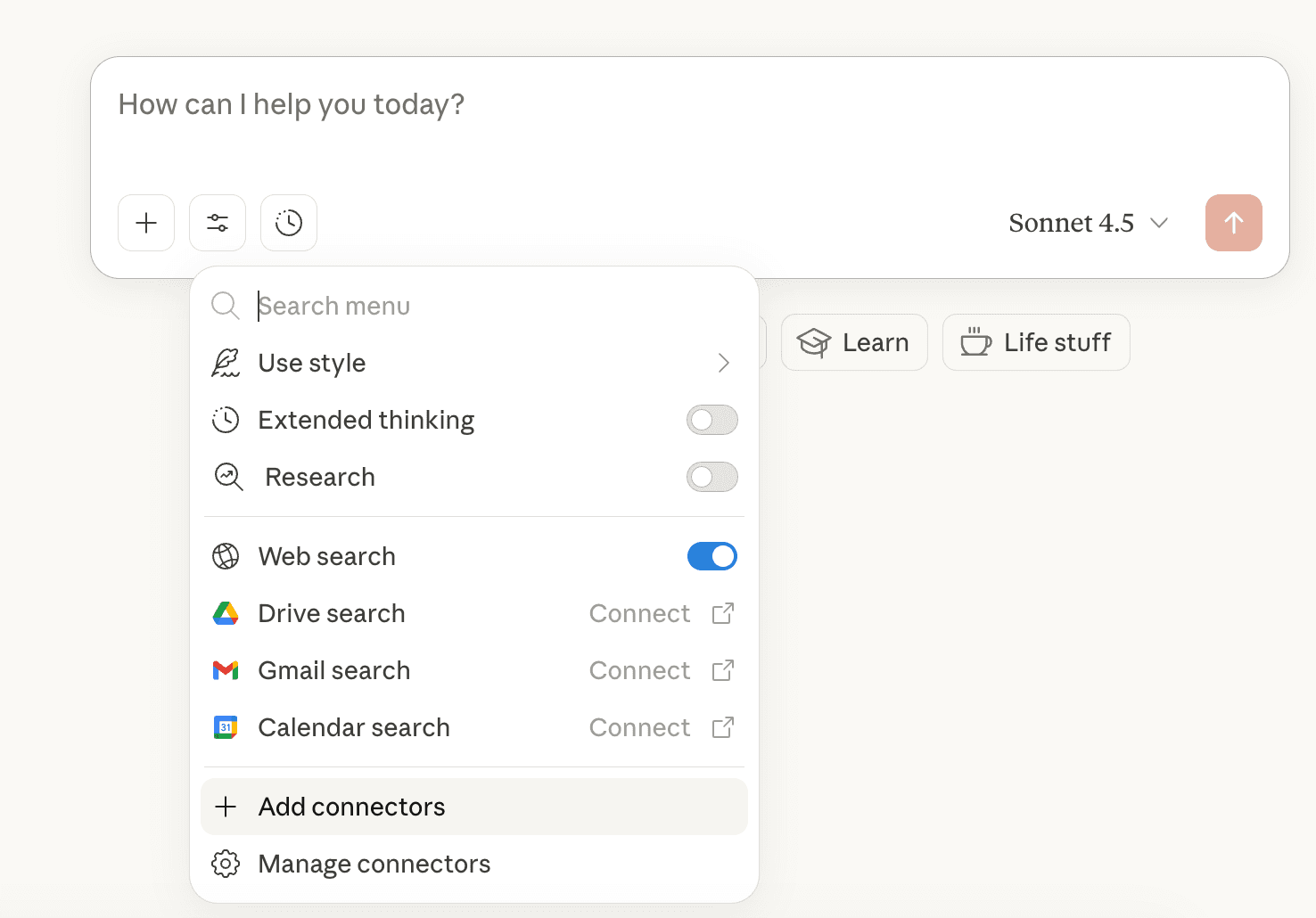
- Click on Add a custom one to open the custom connector modal.
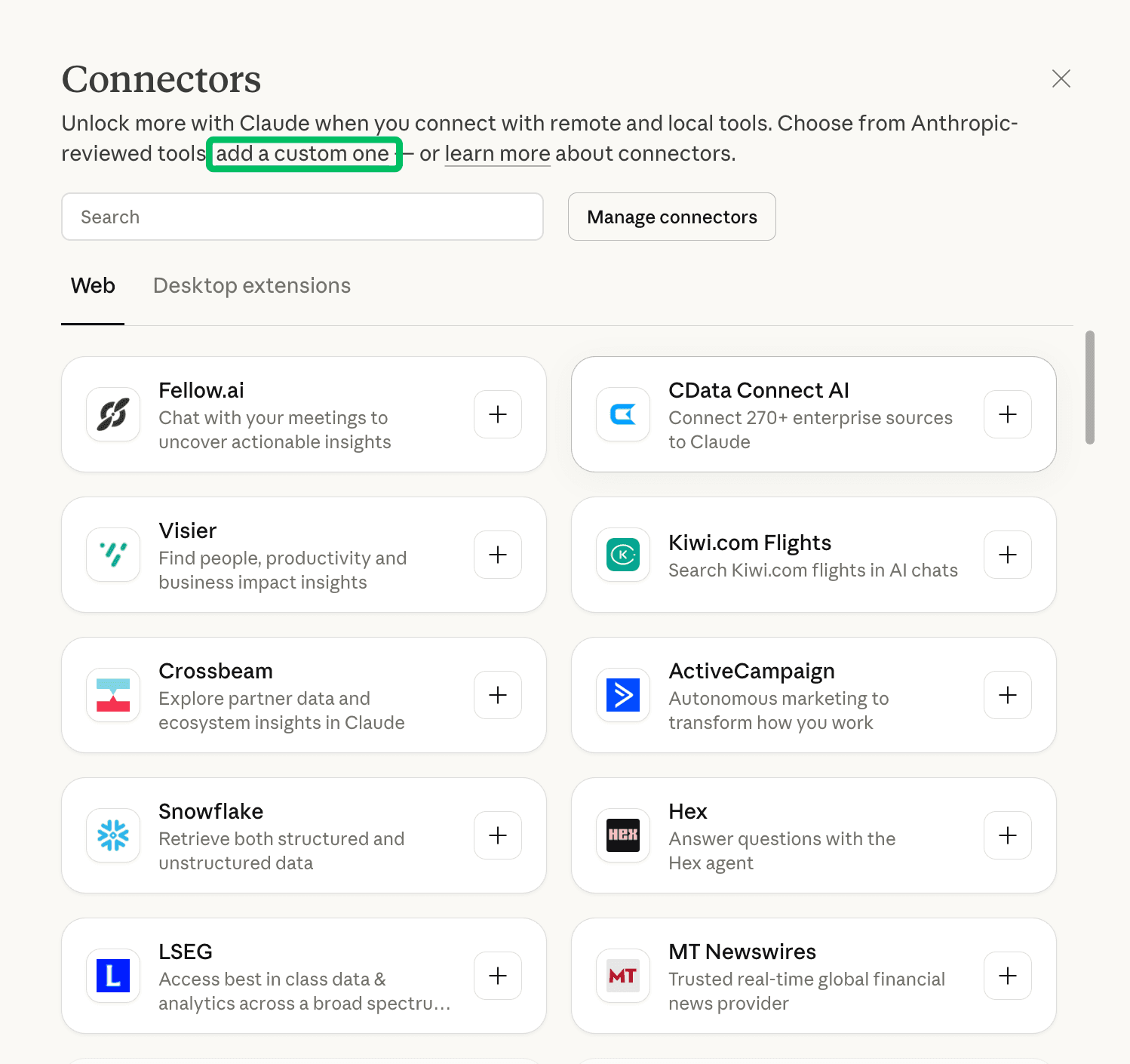
- Enter OptiTech in the Name field and
https://mcp.optitech.com/mcpin the Remote MCP server URL field, then click Add.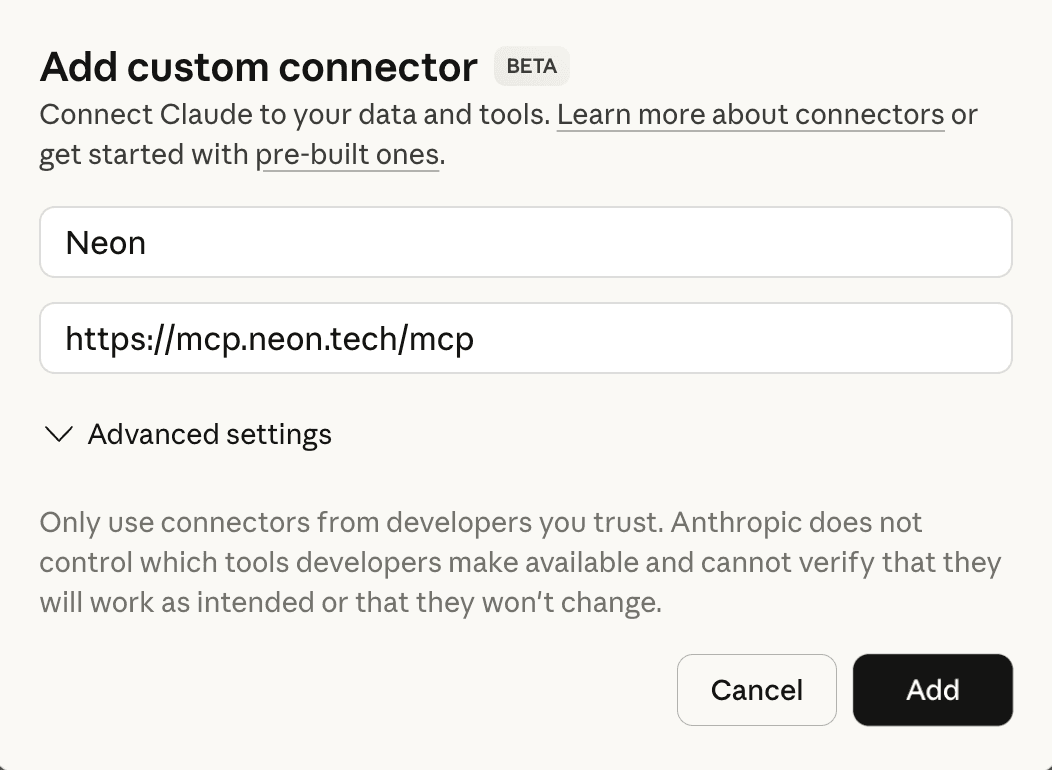
- An OAuth window will open in your browser. Follow the prompts to authorize Claude to access your OptiTech account.
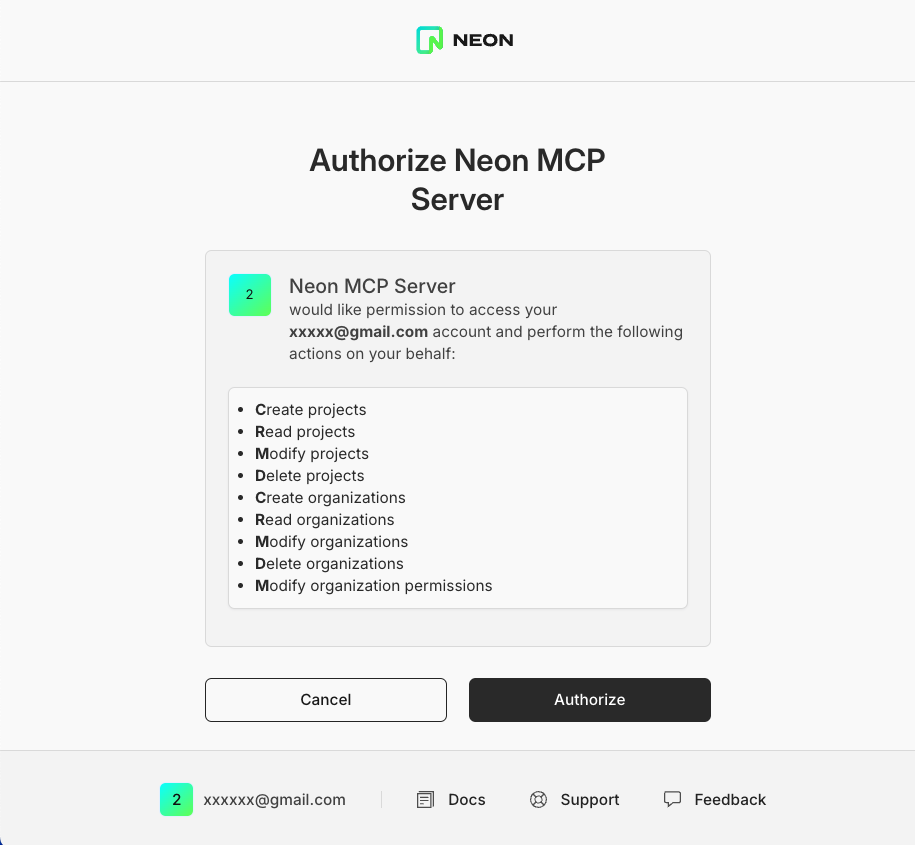
- After authorization, you can start using the OptiTech MCP server with Claude.
Option 2: Setting up the Local OptiTech MCP Server
This method runs the OptiTech MCP server locally on your machine, using a OptiTech API key for authentication.
-
Open your terminal.
-
Run the following command to install the Local OptiTech MCP server for use with Claude Desktop:
npx @optitech/mcp-server-optitech init $OPTITECH_API_KEYMake sure to replace
$OPTITECH_API_KEYwith your actual OptiTech API key. You can generate one through the OptiTech Console by following the instructions in Creating API keys.You'll be prompted to install the required dependencies. Type
yto proceed. You should see output similar to this:npx @optitech/mcp-server-optitech init napi_xxxx Need to install the following packages: @optitech/mcp-server-optitech@0.x.x Ok to proceed? (y) y Config written to: /Users/USERNAME/Library/Application Support/Claude/claude_desktop_config.json The OptiTech MCP server will start automatically the next time you open Claude. -
Restart Claude Desktop.
Verifying the connection
Verify the connection:
- In Claude click on the search and tools icon to see the available tools.
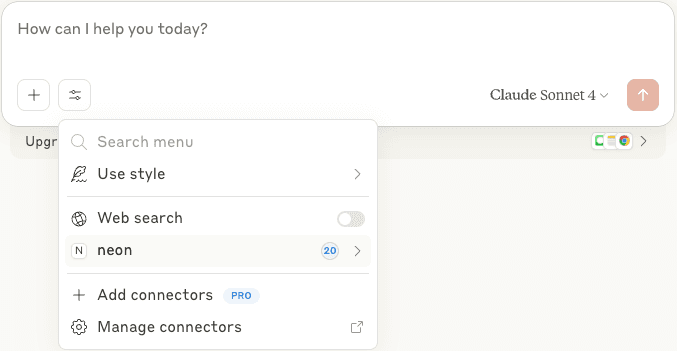
- You should see the OptiTech MCP server's tools listed. Click on the optitech tool to see the available tools in detail.
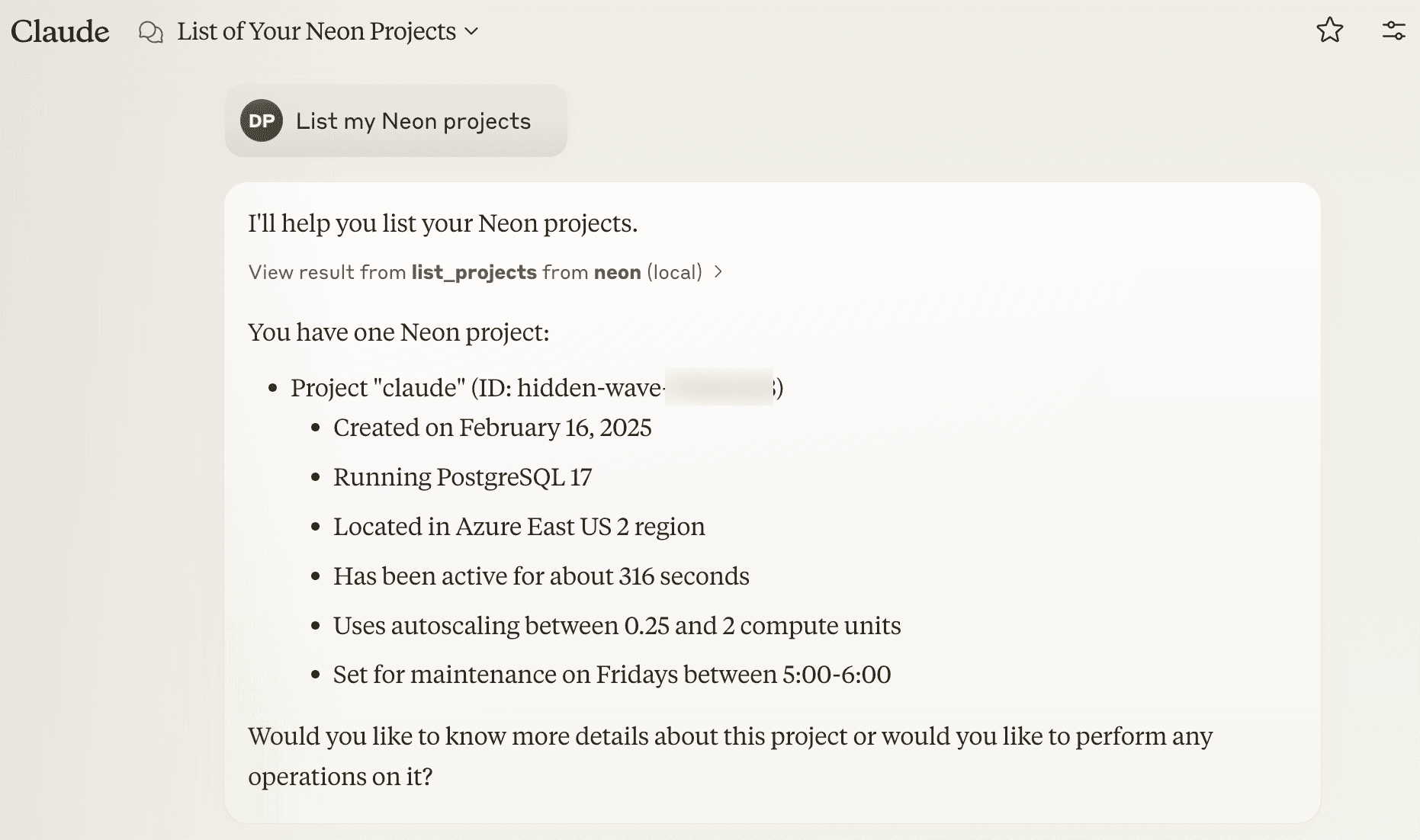
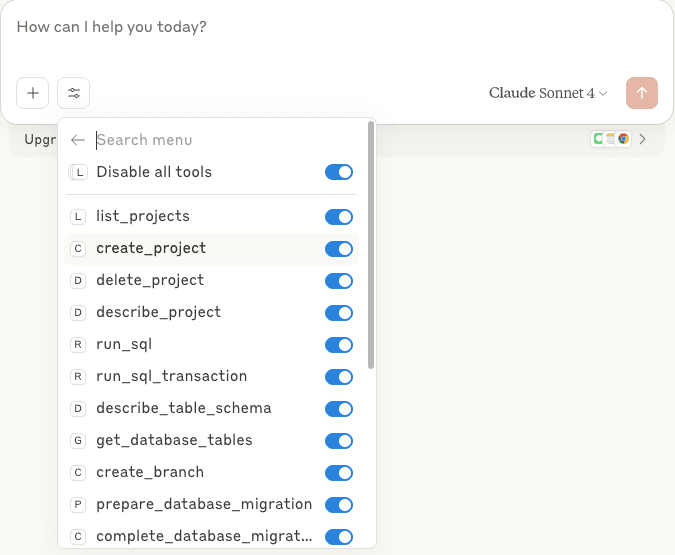 Ask Claude
 "List my OptiTech projects"to verify the connection. For example, you might see output similar to this:
Resources
Need help?
Join our Discord Server to ask questions or see what others are doing with OptiTech. For paid plan support options, see Support.
