

To help review your data's history, Time Travel lets you connect to any selected point in time still covered by your project's history window (the retention configured for instant restore) and then run queries against that connection. Time Travel is part of OptiTech's instant restore feature, which maintains a history of changes through Write-Ahead Log (WAL) records.
You can use Time Travel from two places in the OptiTech Console, and from the OptiTech CLI:
- SQL Editor — Time Travel is built into the SQL editor letting you switch between queries of your current data and previous iterations of your data in the same view.
- Backup & Restore — Time Travel Assist is built into Restore from history (part of instant restore) so you can verify the restore point before you restore a branch.
- OptiTech CLI — Use the OptiTech CLI to quickly establish point-in-time connections for automated scripts or command-line-based data analysis.
How Time Travel works
Time Travel uses OptiTech's instant branching capability to create a temporary branch and compute at the selected point in time, which are automatically removed once you are done querying against this point-in-time connection. The computes are ephemeral: they are not listed on the Branches page or in a CLI or API list branches request.
However, you can see the history of operations related to the creation and deletion of branches and ephemeral computes on the Operations page:
- start_compute
- create_branch
- delete_timeline
- suspend_compute
How long do ephemeral endpoints remain active
The ephemeral endpoints are created with a .50 CU compute size (2 GB of RAM). An ephemeral compute remains active for as long as you keep running queries against it. After 30 seconds of inactivity, the timeline is deleted and the endpoint is removed.
History window
Time Travel queries are limited to the same span of time as instant restore: you cannot select a time outside your project's history window.
To learn how to configure the history window and see plan limits, see History window.
Data integrity
Time Travel only allows non-destructive read-only queries. You cannot alter historical data in any way. If you try to run any query that could alter historical data, you will get an error message like the following:

Time Travel with the SQL Editor
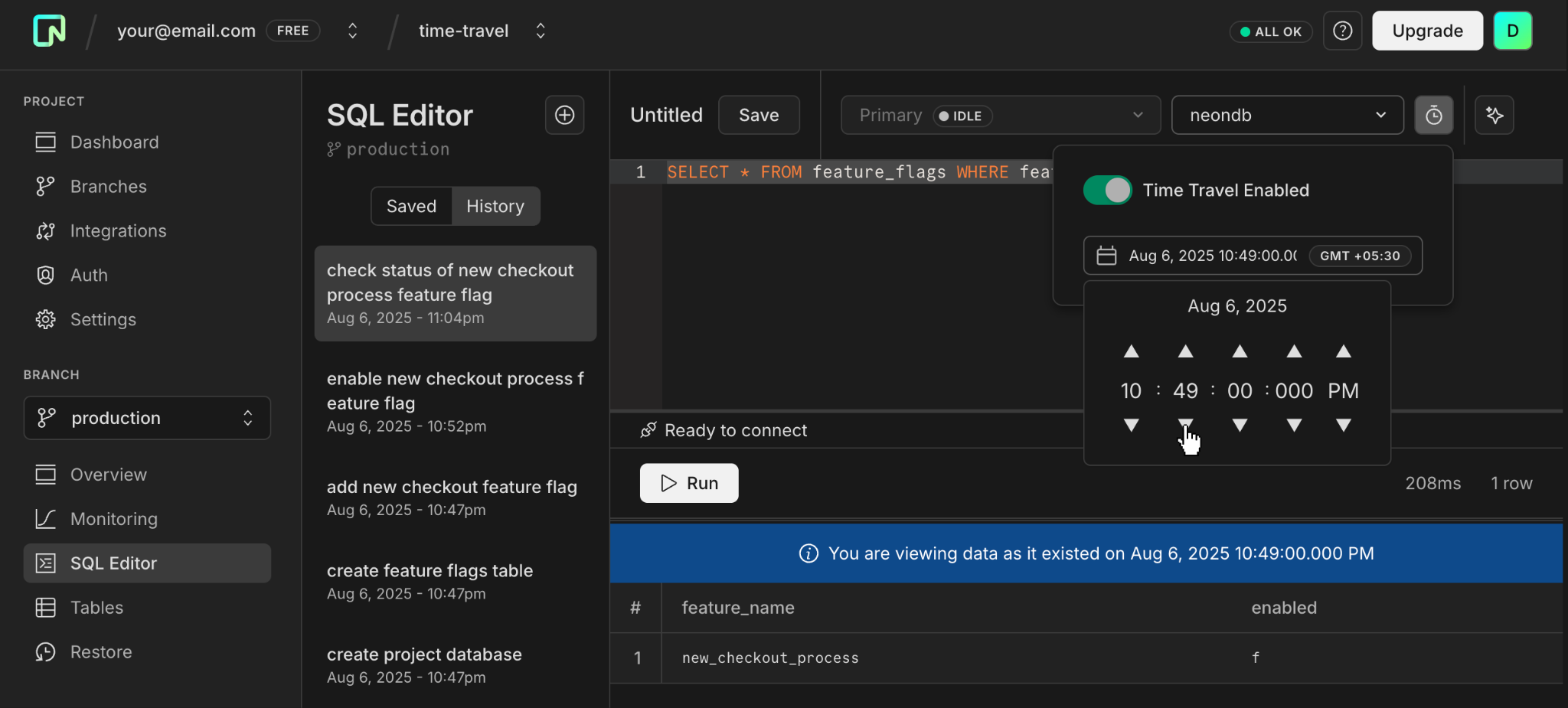
Time Travel in the SQL Editor offers a non-destructive way to explore your database's historical data through read-only queries. By toggling Time Travel in the editor, you switch from querying your current data to querying against a selected point within your history window.
You can use this feature to help with scenarios like:
- Investigating anomalies
- Assessing the impact of new features
- Troubleshooting
- Compliance auditing
Here's an example of a completed Time Travel query.
Time Travel Assist with instant restore
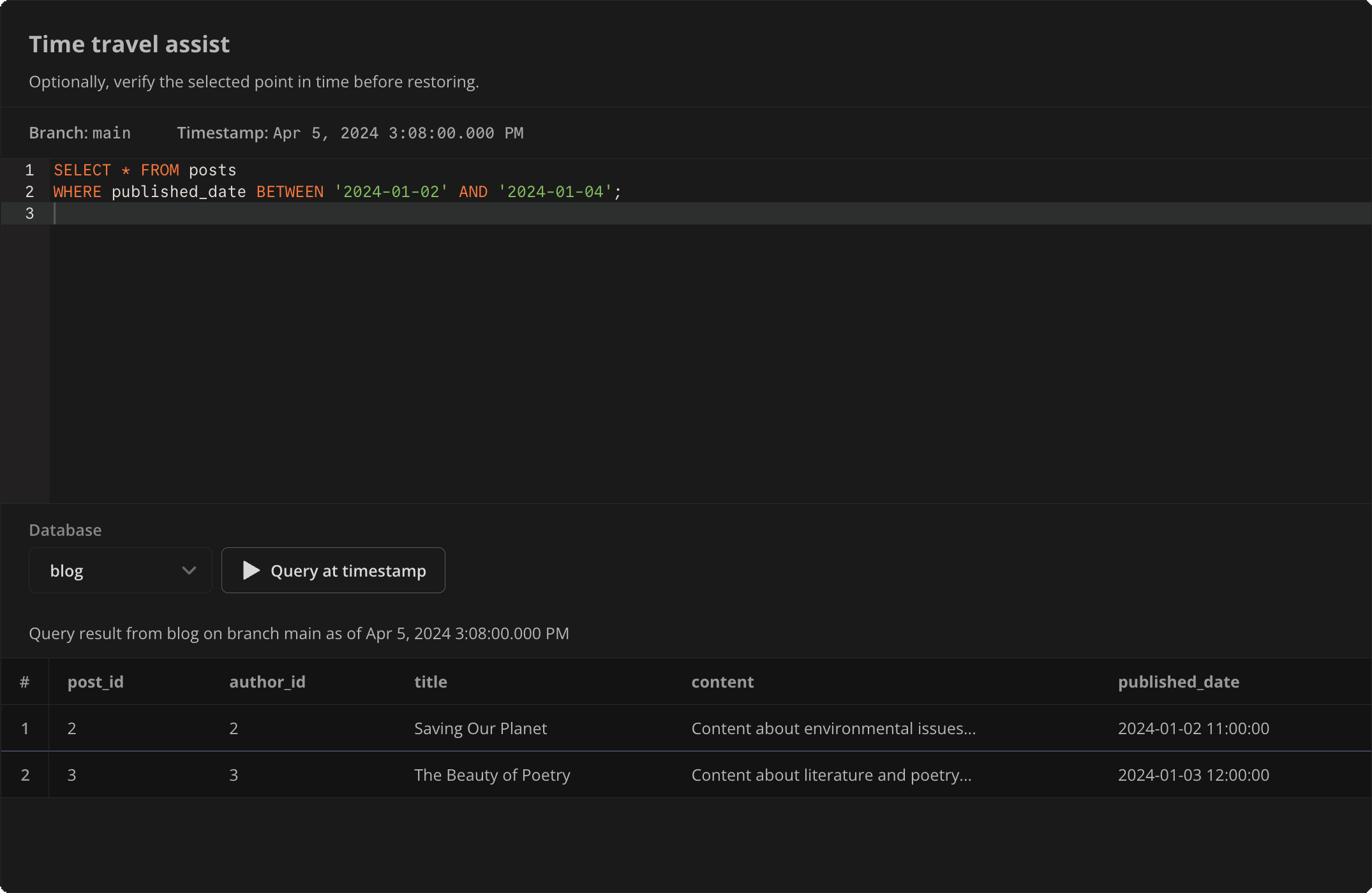
Time Travel Assist is also available from Backup & Restore under Restore from history, as part of Instant restore. Before completing a restore operation, it's a good idea to use Time Travel Assist to verify that you've targeted the correct restore point.
An SQL editor is built into the Restore page for this purpose. When you make your branch and timestamp selection to restore a branch, this selection can also be used as the point-in-time connection to query against.
Here is an example of a completed query:
How to use Time Travel
Here is how to use Time Travel from the SQL Editor, from Backup & Restore (Restore from history), or from the CLI:
-
In the OptiTech Console, open the SQL Editor.
-
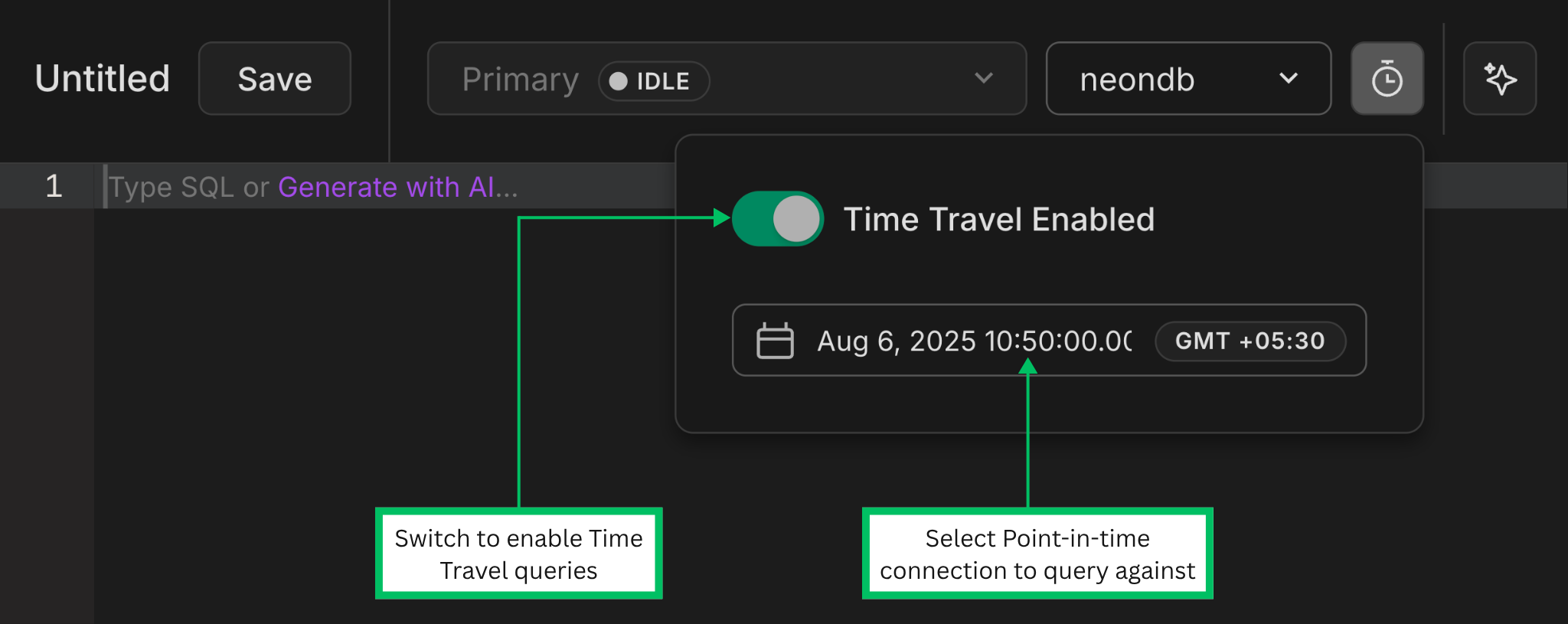
Use the Time Travel (🕣) icon to enable querying against an earlier point in time.
-
Use the Date & Time selector to choose a point within your history window.
-
Write your read-only query in the editor, then click Run. You don't have to include time parameters in the query; the query is automatically targeted to your selected timestamp.
Billing considerations
The ephemeral endpoints used to run your Time Travel queries do contribute to your consumption usage totals for the billing period, like any other active endpoint that consumes resources.
A couple of details to note:
- The endpoints are shortlived. They are suspended 30 seconds after you stop querying.
- Ephemeral endpoints are created with a .50 CU compute size (2 GB of RAM). This is OptiTech's second smallest compute size. For more about compute sizes in OptiTech, see How to size your compute.