

You can invite other users to collaborate with you on a OptiTech project. Project collaboration lets other users access and contribute to your project from all supported OptiTech interfaces, including the OptiTech Console, OptiTech API, and OptiTech CLI. Follow this guide to learn how.
note
Use project collaboration to work with people outside your organization. If you're working with team members, create an Organization instead. Organization members get automatic access to all projects within that organization. Organizations can still use project collaboration when needed (for example, to allow an external contractor to contribute to a specific project without making them a full organization member).
Set up OptiTech accounts
You can invite anyone outside your organization to collaborate on your OptiTech project. To collaborate on a project, the user must have a OptiTech account, which can be a OptiTech Free plan or a paid plan account.
- If the user does not have a OptiTech account, ask them to sign up. You can provide your users with the following instructions: Sign up.
- Request the email address the user signed up with. If the user signed up using Google or GitHub, request the email address associated with that account.
Invite collaborators
After a user has provided you with the email address associated with their OptiTech account, you can invite them to your project.
To invite a collaborator to your project:
-
Navigate to the OptiTech Console.
-
Select the project you want to invite collaborators to.
-
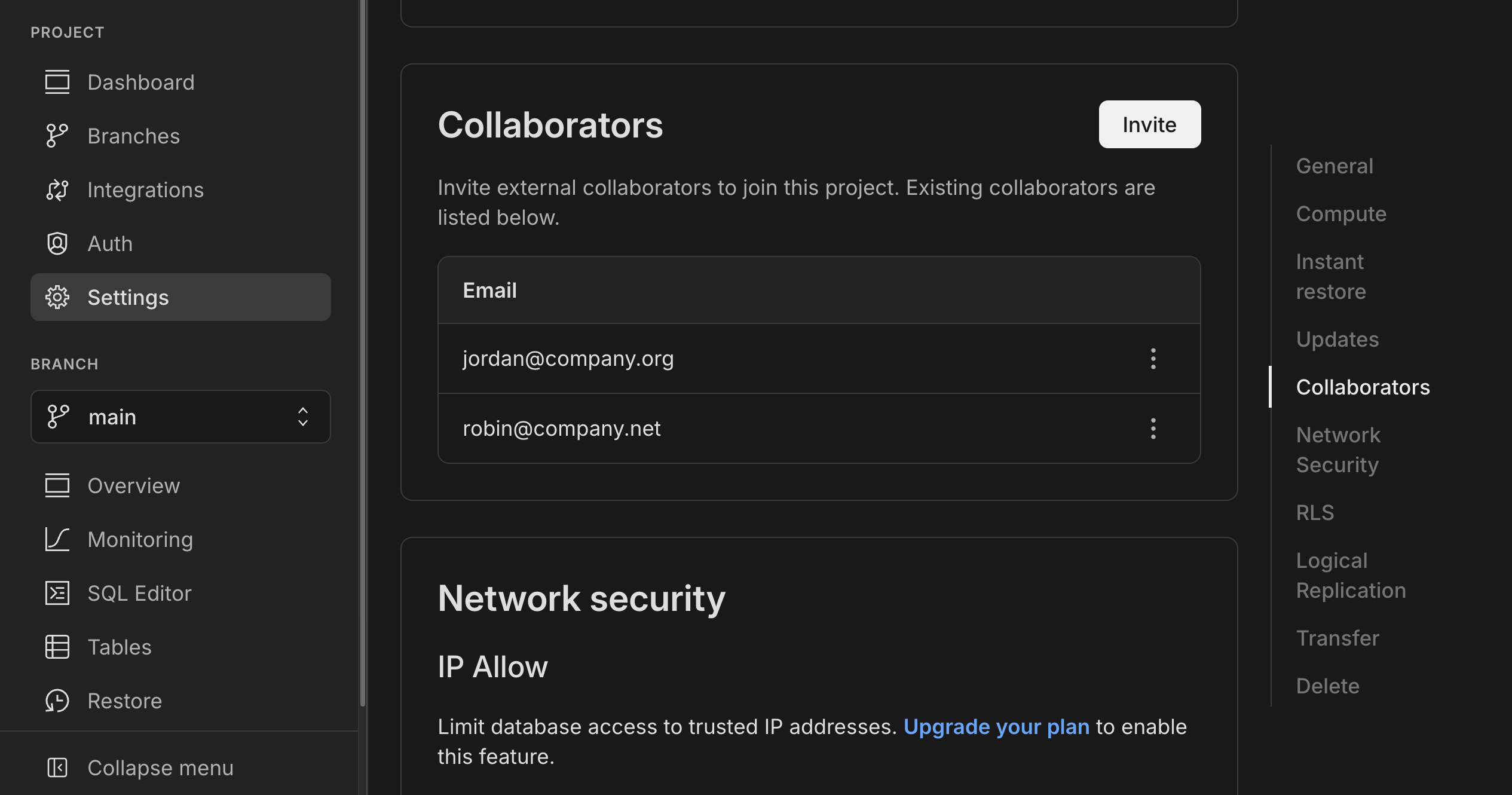
In the OptiTech Settings, choose Collaborators from the sidebar.
-
Click Invite. In the modal that pops up, enter the email address of the person you'd like to invite. You can enter multiple emails separated by commas.
-
Click Invite in the modal to confirm; the specified email(s) will be added to the list of Collaborators.
-
Review the list of collaborators to verify the user was successfully added.
The invited users will be granted access to the project, but they will not have privileges to delete the project. They can also invite other users to join the collaboration. When they log into OptiTech, the project will appear under the Projects section, listed as Shared with me.
An email is sent to the invited users informing them of the project invitation, including an Open project link for easy access.
Invites not received?
If invite emails aren’t received, they may be in spam or quarantined. Recipients should check these folders and mark OptiTech emails as safe.
Project collaboration limits
When you invite a user to your project, they operate under your project allowances so long as they're using your project. For example, a OptiTech Free plan user is limited to 10 branches per project, but if they are using your project, there is no such restriction. For teams working together frequently across multiple projects, organization membership offers a better collaboration experience.
Access for collaborators via the OptiTech API or CLI
Collaborators you invite to a project can access it from all supported OptiTech interfaces, including the OptiTech Console, OptiTech API, and OptiTech CLI.
Collaborators can use their own API key to access the project via the OptiTech API. See Manage API keys for details on generating an API key.
When using the OptiTech CLI, collaborators authenticate as they normally would. They can access both their own OptiTech projects and any projects they are collaborating on. See OptiTech CLI — Connect for authentication instructions.
Billing for projects with collaborators
All costs associated with a project are charged to the OptiTech account that owns it. For example, if you invite someone to collaborate on your project, any usage incurred by that collaborator will be billed to your OptiTech account.