

Learn how to manage your organization's projects, invite Members, revise permissions, and oversee billing details. This section explains which specific actions each Member can take based on their assigned roles and permissions.
Create an organization
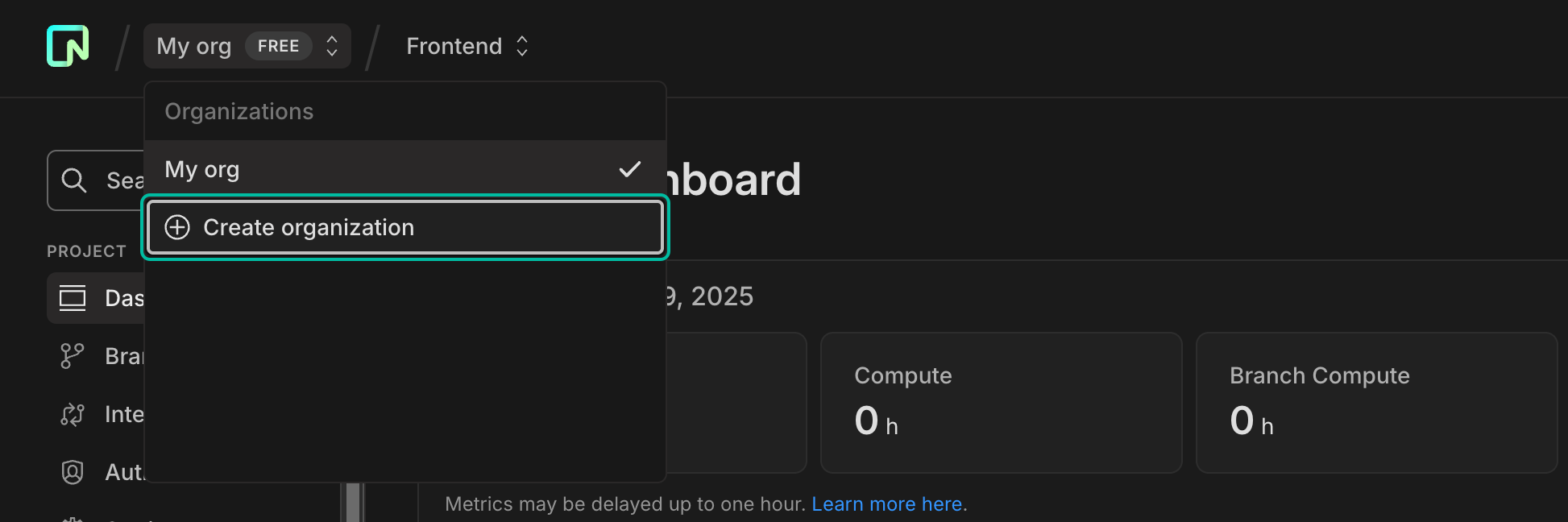
To create a new org, use the Create organization button in the org switcher in the top navbar.
Select a plan for your new organization. Organizations can be free or paid; if you choose a paid plan, you'll enter billing details.
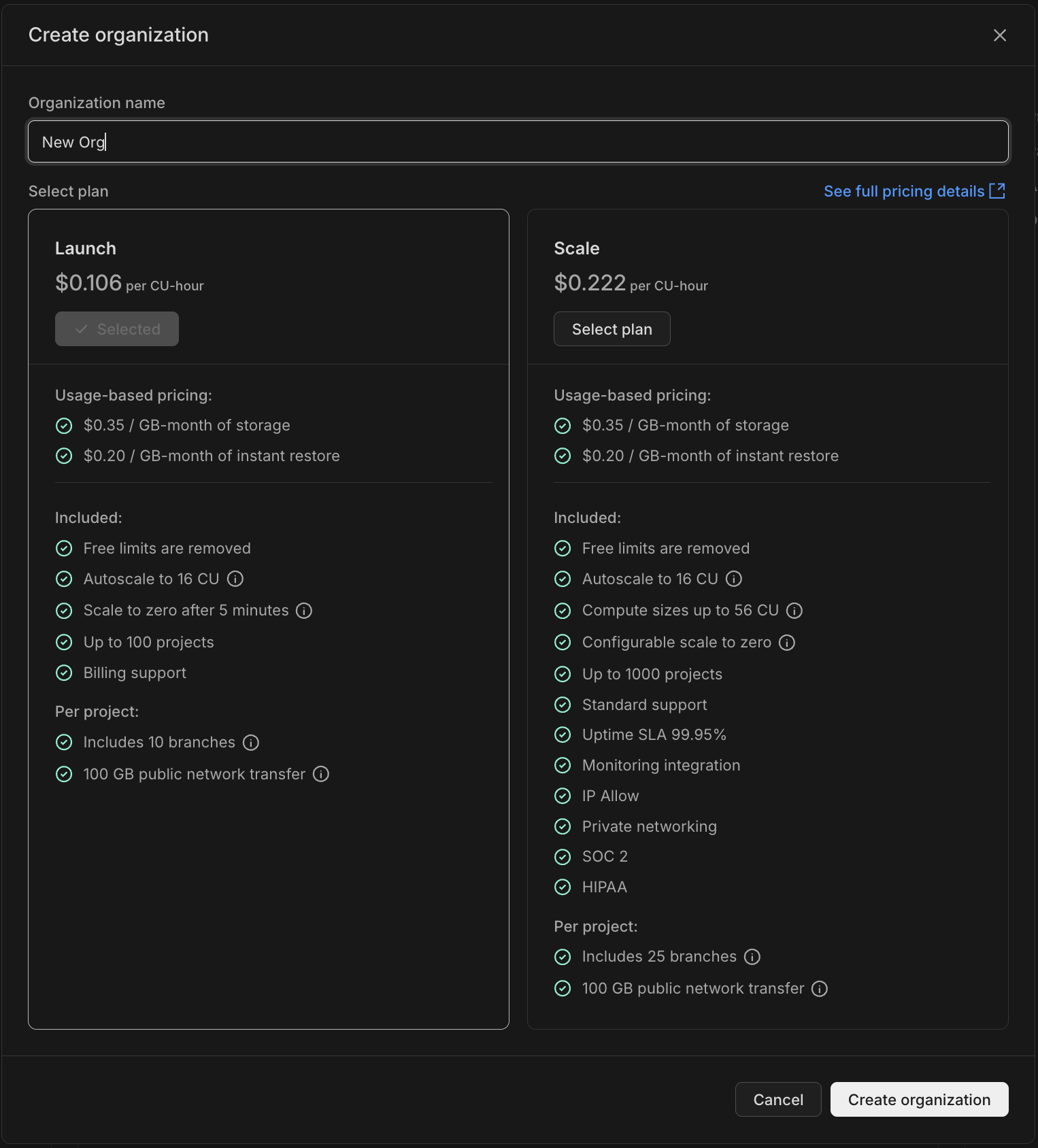
After confirming, you'll be directed to your new organization's Projects page, where you can get started creating projects and inviting members.
Invite Members
Only Admins have the authority to invite new Members to the organization. Invitations are issued via email. If a recipient does not have a OptiTech account, they will receive instructions to create one. Alternatively, you can auto-provision members by domain so that users with a matching email domain are added automatically when they sign up or log in.
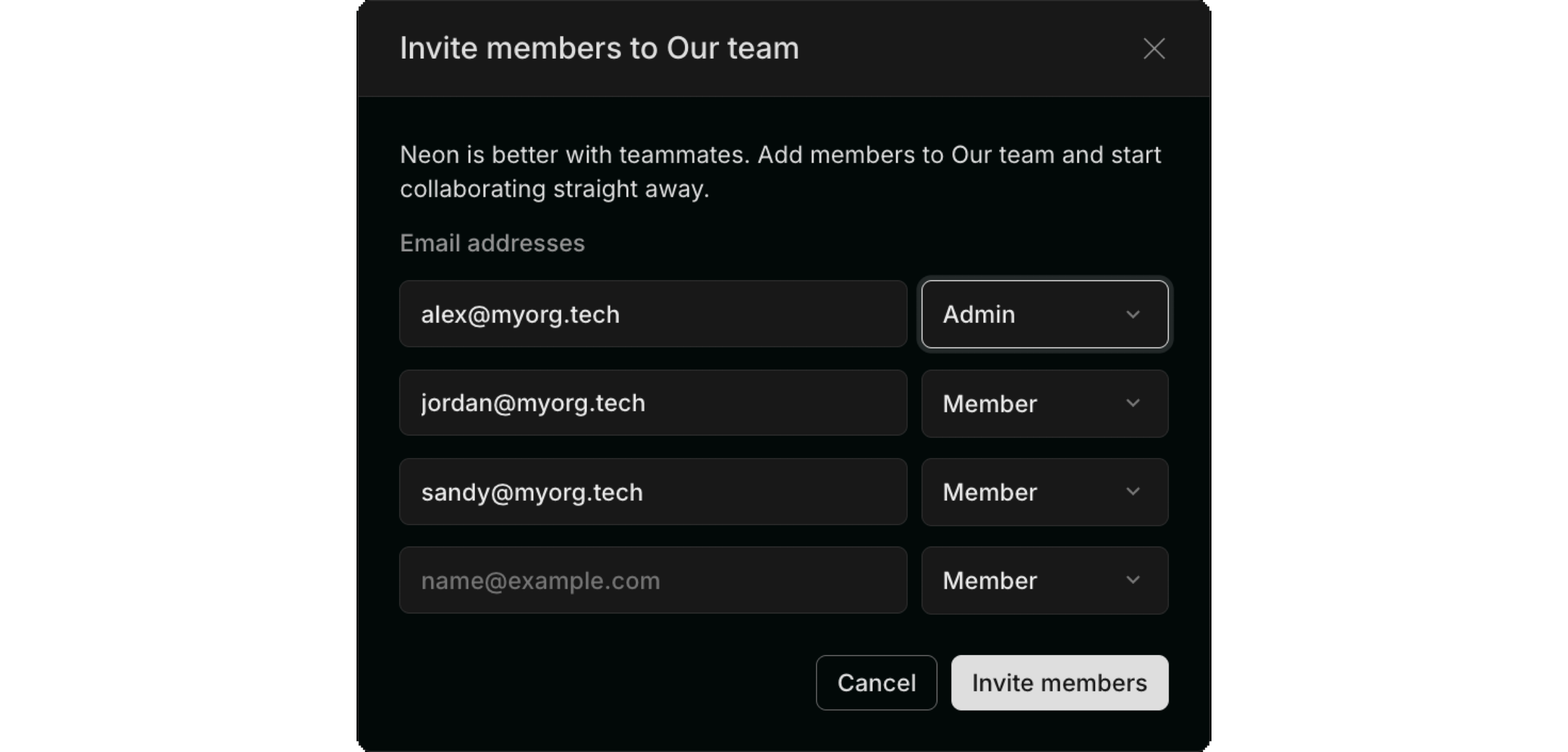
To invite Members:
- Navigate to the People page in your Organization.
- Click Invite member and enter the email addresses in a comma-separated list.
- Monitor the status of sent invites on the Pending Invites section; from here, you can resend or cancel invitations as needed.
Invites not received?
If invite emails aren't received, they may be in spam or quarantined. Recipients should check these folders and mark OptiTech emails as safe.
To list members, update roles, or manage invitations programmatically, see Manage organizations using the OptiTech API (including List members).
The People page also shows deactivated organization members with a Deactivated badge, so admins can review access without opening each member profile.
Set permissions
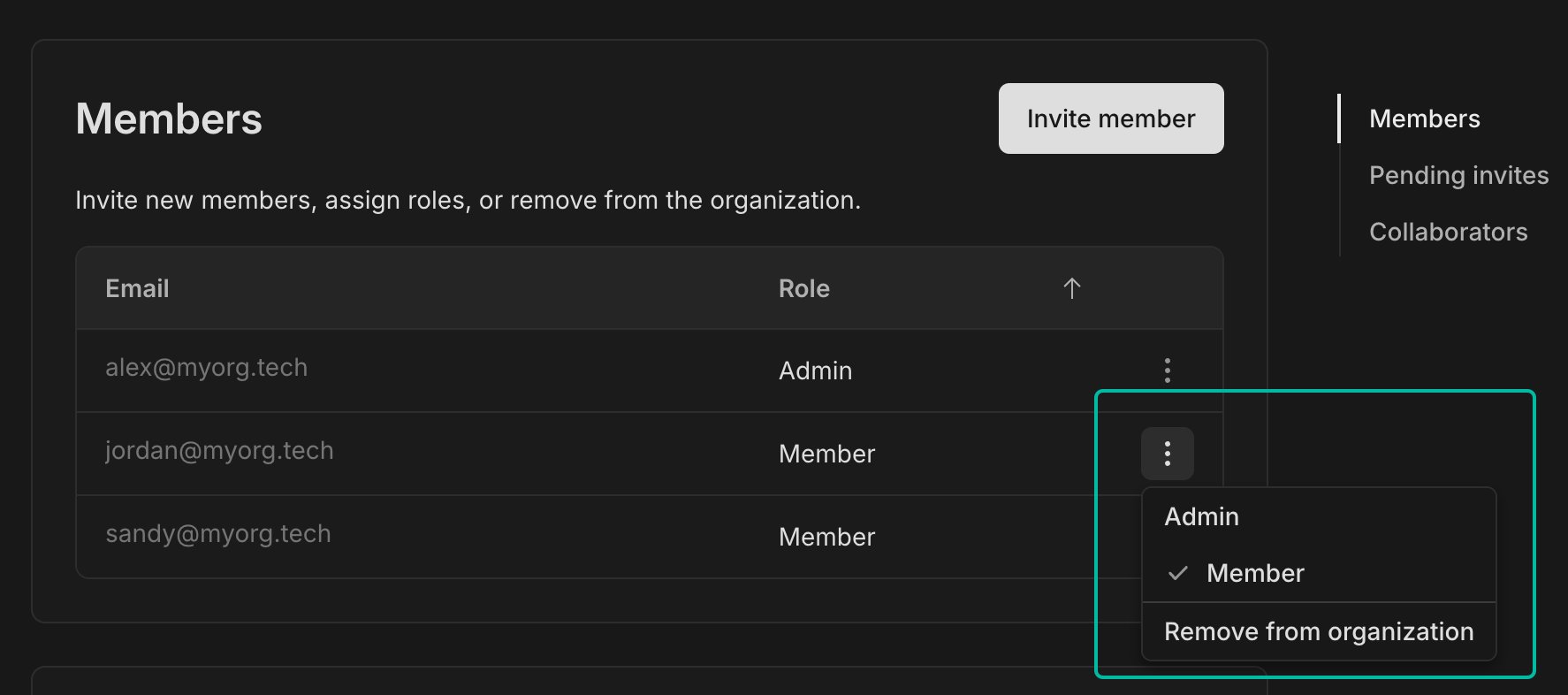
Permissions within the organization are exclusively managed by Admins. As an Admin:
- You can promote any Member to an Admin, granting them full administrative privileges.
- You can demote any admin to a regular Member.
- You cannot leave the organization if you are the only Admin. Promote a Member to Admin before you try to leave the org.
Require 2FA for organization members
Admins can require two-factor authentication (2FA) for everyone in the organization from Organization → Settings. A passkey satisfies this requirement too, so members can enroll in either 2FA or a passkey to comply.
- You can only enable this if your own account already has 2FA or a passkey set up.
- When required 2FA is on, members who don't have 2FA or a passkey enrolled are prompted to set one up when they access the organization.
See Manage your OptiTech account for personal 2FA setup steps, or Passkeys for passkey setup steps.
Invite Collaborators
Any member can invite external users to collaborate on specific projects. For example, if you want to give limited access to a contractor.
Members can invite collaborators from a project's Settings page. If any project in your organization has collaborators, you'll also see the option to invite and manage collaborators from the organization's People page.
Collaborators do not have access to the organization. They access their shared projects by selecting the Projects shared with me option in the org switcher.
note
Organization members don't need Collaborator invites as they already have full project access. When projects are transferred to an organization, existing collaborator permissions for organization members are automatically removed.
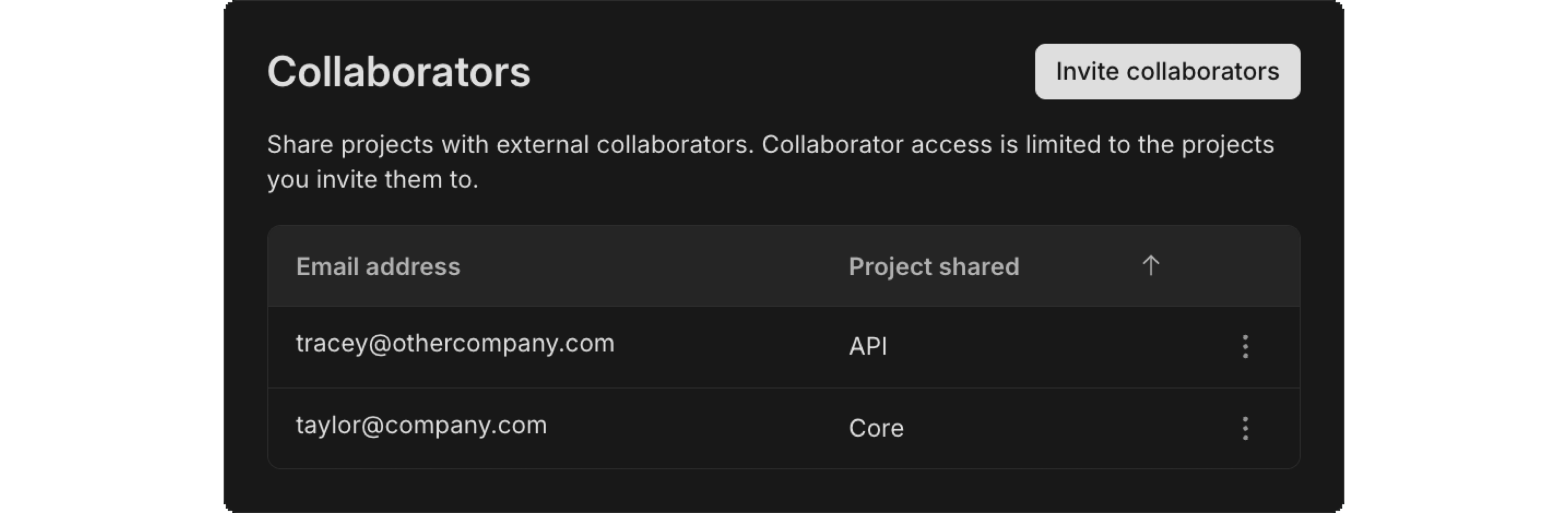
To invite new Collaborators, click Invite collaborators and select the project you want to share, then add a comma-separated list of emails for anyone you want to give access to. These users will receive an email inviting them to the project.
Invites not received?
If invite emails aren't received, they may be in spam or quarantined. Recipients should check these folders and mark OptiTech emails as safe.
Manage Collaborators
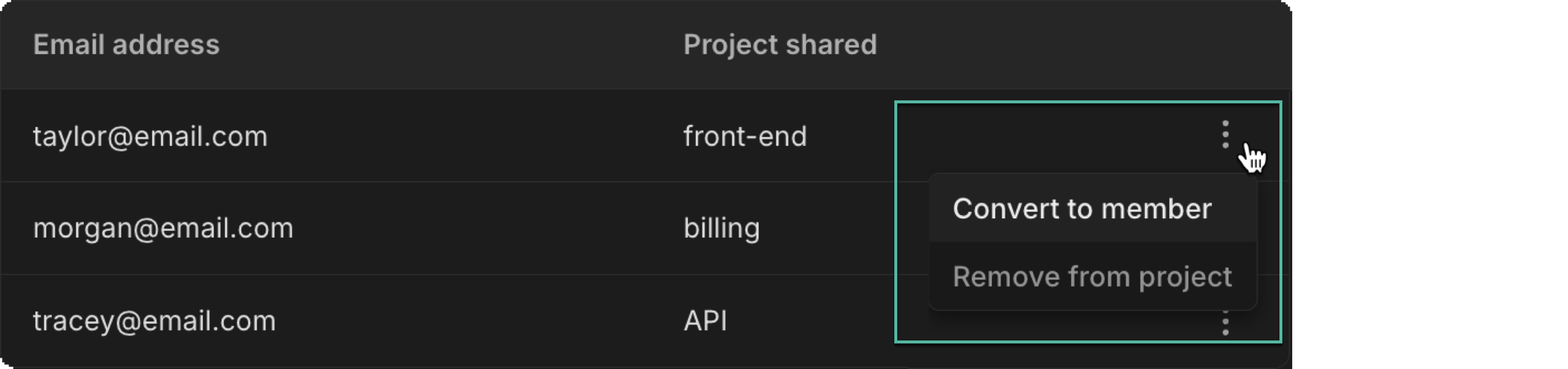
Click the More Options menu next to the row in the Collaborators table to manage Collaborator access. You have two options:
-
Convert to member: Admins can promote an external Collaborator to a full Member. When promoted, their collaborator permissions will be automatically removed since they'll have access to all projects as a Member.
-
Remove from project: All members can revoke the Collaborator's access to the shared project.
-
Create and delete projects
All Members can create new projects from the Organization's Projects page; however, the organization itself retains ownership of these projects, not the individual user.
- Any Member can create a project under the organization's ownership.
- Only Admins can delete projects owned by the organization.
Manage billing
When you create a new organization, you'll choose a plan for that organization. Each organization manages its own billing and plan.
As the Admin for the organization account:
- You have full access to edit all billing information.
- Promote a Member to Admin if you want to delegate billing management; however, all Admins will have the capability to edit billing details.
- While all Members can view the Billing page, only admins can make changes.
For detailed information on pricing and plans, refer to OptiTech plans.
Downgrade to Free plan
If downgrading to the Free plan isn't available for your organization, you'll see an error when you try.
To downgrade, your org must:
- Stay within Free plan limits (storage, projects, branches, etc.)
If you need help or think you should be able to downgrade, use the Request support option during the downgrade process.
Delete an organization
Only Admins can delete an Organization. Before doing so, make sure all projects within the Organization are removed.
In your Organization's Settings page, you'll find the Delete section. It will list any actions you need to take before deletion is allowed. For example, if you still have outstanding projects that need to be removed, you'll see:

Complete any necessary steps. Once cleared, you can go ahead and delete. This action will permanently remove the organization and cancel its associated billing. It can't be reversed.
More actions
You can also rename your organization.
Rename an organization
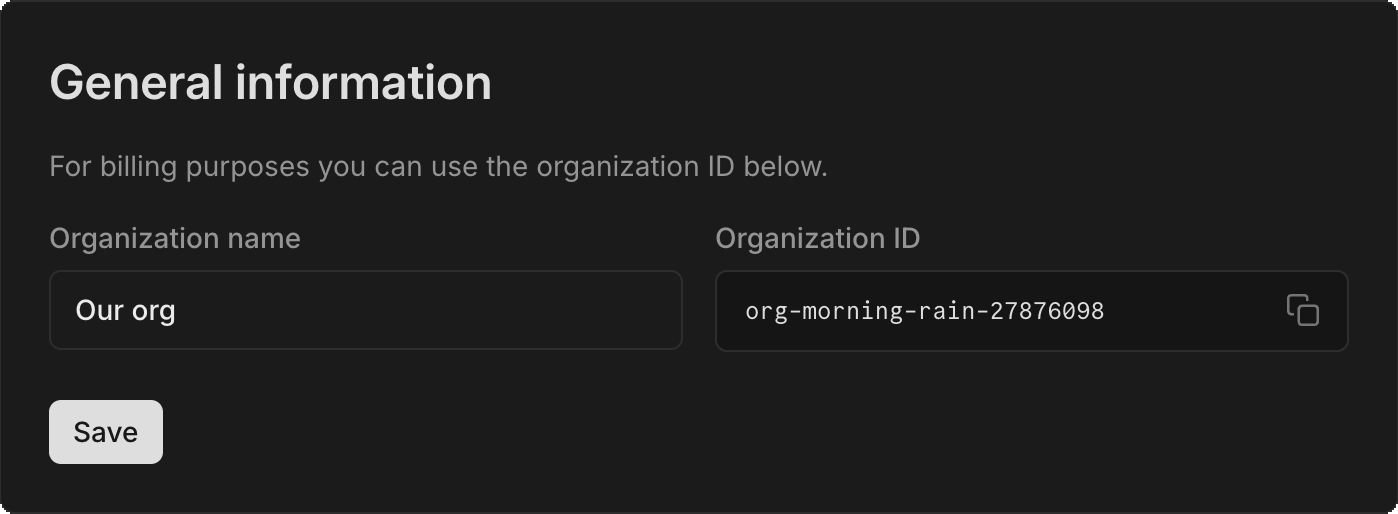
Only Admins can rename an organization. Go to the Settings page under General information. Changing the organization name applies globally; the new name will appear for everyone in the organization.
Need help?
Join our Discord Server to ask questions or see what others are doing with OptiTech. For paid plan support options, see Support.